If you are adding a Dify OpenAI-compatible provider, the hard part is rarely the Dify form itself. The risk is entering a base URL that points at the wrong path, saving a model alias that the router does not recognize, and only finding out when a production workflow returns an authentication, model-not-found, or streaming error.
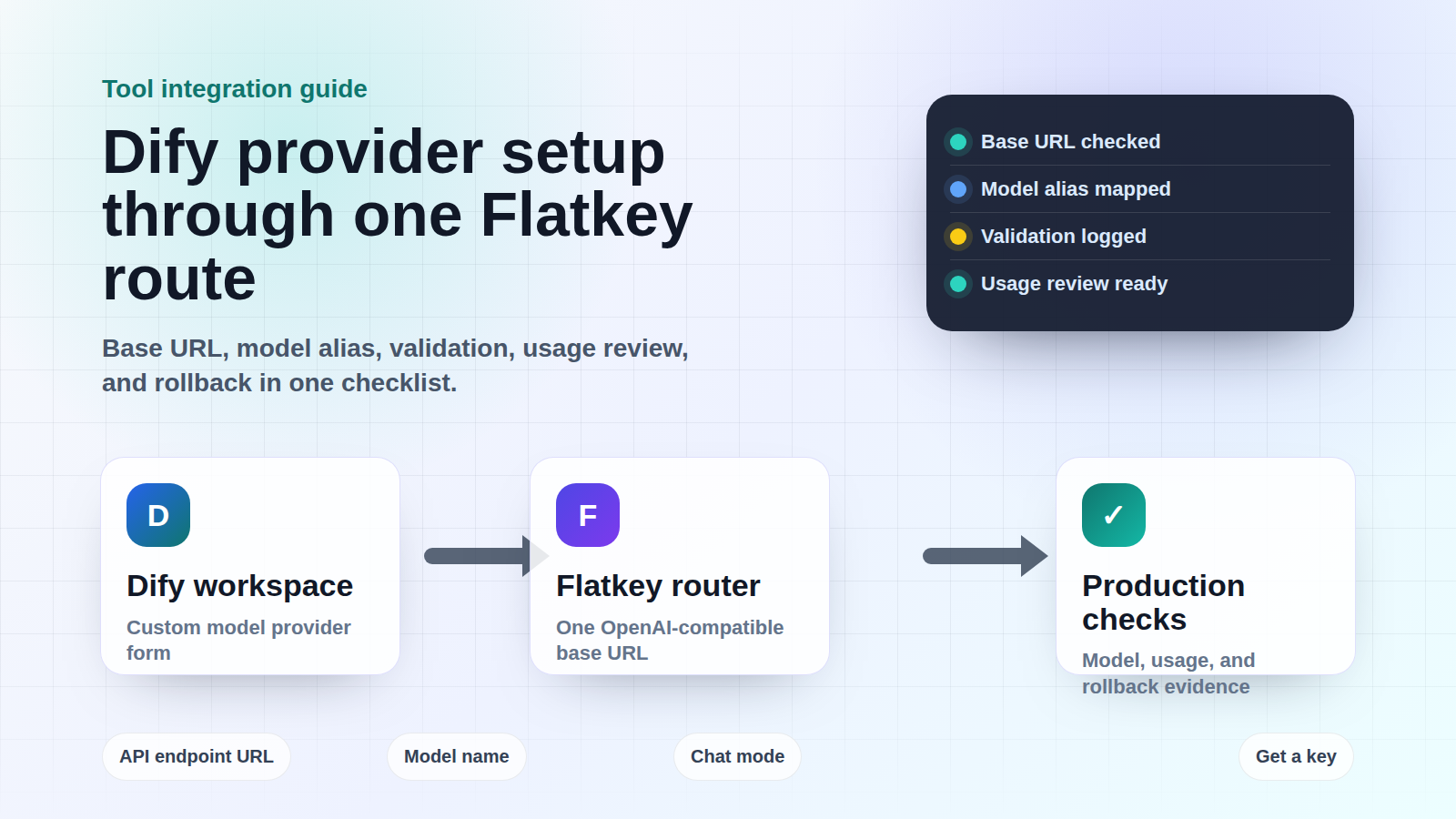
This guide shows a practical Flatkey setup path for Dify teams that want one OpenAI-compatible route for app builders, finance reviewers, and platform owners. Use it when you want Dify to call a Flatkey router through an OpenAI-compatible model provider while keeping model selection, usage review, and rollback checks explicit.
Source note: this was checked on June 28, 2026 against Dify's public documentation, the official OpenAI-API-compatible plugin source, and Flatkey public pages. No account-specific Flatkey key or Dify workspace was available for a live smoke test, so the request snippets below are templates to run with your own key and model alias.
Dify OpenAI-compatible provider setup checklist
Use this checklist before you save the provider. It turns the Dify OpenAI-compatible provider form into a controlled integration instead of a guess-and-retry exercise.
| Check | Use this value or decision | Why it matters |
|---|---|---|
| Provider plugin | OpenAI-API-compatible model provider | The official plugin is for OpenAI-compatible LLM, rerank, embedding, speech-to-text, and text-to-speech models, but this guide focuses on LLM chat setup. |
| API endpoint URL | https://console.flatkey.ai/v1 for the LLM chat path, then validate in Dify |
Flatkey's public examples and pricing endpoint map show OpenAI-style /v1/chat/completions. Do not paste the full /chat/completions path into Dify. |
| API key | A Flatkey key scoped for the team or environment | The Dify plugin may not require a key for every local endpoint, but Flatkey requests should be authenticated. |
| Model Name | The display model name Dify users will select | This is the model entry exposed inside Dify apps and workflows. |
| Endpoint model name | The exact Flatkey model alias if it differs from the display name | The plugin source supports an optional endpoint model name override; use it to keep Dify labels readable without changing the routed model string. |
| Completion mode | chat for OpenAI-style message workflows |
Dify's LLM implementation validates chat mode through chat-completion style calls. |
| Context and token fields | Set conservative defaults first, then raise after a successful test | Validation and runtime errors can come from token parameter mismatches, not just key or model issues. |
| Observability handoff | Record Dify app, model alias, key owner, and expected endpoint family | It gives finance and platform owners a clean path from Dify runs to Flatkey usage review. |
What Dify actually gives you for model providers
Dify's model provider docs separate system providers from custom providers. System providers are managed by Dify. Custom providers let workspace admins and owners configure their own credentials for providers such as OpenAI, Anthropic, Google, or another compatible endpoint. Dify also documents multiple credentials and model-level credential management for custom models.
For this integration, treat Flatkey as the router behind a custom OpenAI-compatible model. Dify still owns the application workflow, model selector, prompt execution, and workspace permissions. Flatkey becomes the OpenAI-compatible gateway endpoint that the Dify OpenAI-compatible provider calls.
The official Dify plugin source matters because it shows the provider fields, not just the UI labels. The provider YAML defines fields for model name, optional display name, API key, API endpoint URL, endpoint model name, chat or completion mode, context size, token bounds, and feature toggles. The LLM implementation also shows validation paths for chat and completion requests.
Flatkey values to confirm before opening Dify
Do these checks first. They prevent a Dify admin from saving a provider that looks valid but cannot route a real workflow.
1. Confirm the Flatkey base URL
Flatkey's public homepage showed https://console.flatkey.ai/v1 and an OpenAI-style chat path on June 28, 2026. Use the base URL with /v1 for the LLM chat provider field, not the full endpoint path.
Practical rule: the Dify provider field should be the base URL, while the plugin adds the operation path for chat or completion calls. If you paste https://console.flatkey.ai/v1/chat/completions, Dify can end up targeting the wrong URL shape.
2. Confirm the model alias
Flatkey's pricing page showed an AI-readable summary of 599 models across 23 providers and an endpoint map that included /v1/chat/completions, /v1/responses, /v1/messages, /v1/images/generations, and /v1/video/generations on June 28, 2026. For a Dify LLM setup, choose a model alias that supports the OpenAI chat endpoint family you plan to use.
Do not use a pricing-page count or visible catalog row as a guarantee that your key can call that model. Model access can depend on account, group, upstream status, and route configuration. The safe path is to copy the exact model string from your Flatkey console, save it in Dify, then run a small validation prompt.
3. Confirm who owns the key
Dify documents that API keys grant workspace-wide model access and that owners/admins can configure providers. For a production Dify OpenAI-compatible provider, avoid personal keys. Use a Flatkey key owned by the environment, team, or service, and record the Dify workspace that will use it.
Step-by-step: add Flatkey as a Dify OpenAI-compatible provider
- Open Dify workspace settings. Go to Settings, then Model Providers. Dify's official flow says admins and owners configure model providers at the workspace level.
- Install or select the OpenAI-API-compatible provider. In the provider list or Marketplace/plugin flow, choose the OpenAI-API-compatible model provider.
- Add a custom LLM model. Choose LLM as the model type. Keep the first setup narrow: one chat model, one Flatkey key, one known alias.
- Set Model Name. Use the name you want Dify builders to select. If you want a clean internal label, use a readable display name and put the exact routed alias in the endpoint model name field.
- Paste the Flatkey API key. Use the Flatkey key for that Dify workspace or environment. Do not paste upstream provider keys into Dify if Flatkey is meant to be the gateway.
- Set API endpoint URL. Use
https://console.flatkey.ai/v1for the LLM chat setup, then validate. If your self-hosted Dify or plugin version logs a duplicated/v1/v1path, retest with the root route your workspace expects and keep the working value in your runbook. - Choose chat mode. Use
chatfor OpenAI-style messages. Only choose completion mode for legacy completion-style endpoints that you have verified separately. - Set context size and token bounds. Start with conservative values so validation failures are easier to interpret. Raise them after one successful Dify prompt and one usage review.
- Save and validate. Dify validates credentials when saving provider credentials. If validation fails, capture the status code, response body, model name, endpoint URL, and completion mode before changing multiple fields at once.
- Run one Dify workflow. Use a small prompt, verify the response, then check Flatkey usage visibility for the key and model alias.
Template checks before and after Dify validation
The following examples are templates only. Replace the key and model with values from your Flatkey workspace. Run them outside Dify first so you know whether a failure belongs to the key/router layer or to Dify's provider form.
export FLATKEY_API_KEY="fk_replace_me"
export FLATKEY_MODEL="replace-with-your-model-alias"

curl https://console.flatkey.ai/v1/chat/completions \
  -H "Authorization: Bearer $FLATKEY_API_KEY" \
  -H "Content-Type: application/json" \
  -d '{
    "model": "'"$FLATKEY_MODEL"'",
    "messages": [
      {"role": "user", "content": "Return one short sentence."}
    ],
    "max_tokens": 32
  }'
If that works, save the same base URL and model alias in the Dify OpenAI-compatible provider. If Dify fails but curl works, the likely problem is one of four fields: endpoint URL shape, endpoint model name, chat/completion mode, or token parameter behavior.
Failure modes to debug first
| Symptom | Likely cause | Fix |
|---|---|---|
| 401 or authentication failed | Wrong Flatkey key, expired key, pasted upstream provider key, or missing Bearer auth | Create or rotate the Flatkey key, paste it into the provider, and retest with the curl template. |
| 404 or model not found | Display model name does not match the routed endpoint model name | Use the optional endpoint model name field for the exact Flatkey alias and keep the visible Dify name readable. |
URL contains /v1/v1 |
Plugin or model-type path composition differs from the value you entered | Check Dify logs, then test the root-vs-/v1 value for that model type. Keep LLM chat setup separate from embeddings or speech tests. |
| Validation fails on token parameter | Some models expect max_completion_tokens or a different minimum token value |
Lower the initial max token setting, confirm the plugin version, and test the model alias outside Dify. |
| Streaming or tool-call response shape breaks | Provider returns a non-standard OpenAI-compatible response shape | Turn off optional features first, validate plain chat, then re-enable streaming, tools, or structured output one at a time. |
| Finance cannot reconcile Dify runs | Dify app, key owner, and model alias were not recorded together | Log a setup row with Dify app, Flatkey key, Flatkey model alias, environment, and owner before moving the workflow to production. |
When to use one Flatkey route instead of many Dify credentials
Dify supports adding multiple credentials and even model credential load balancing for some plans and providers. That can be useful when Dify itself is the place where you want to distribute traffic across separate credentials.
For teams using Flatkey as a gateway, the simpler default is one Dify credential pointed at Flatkey, then route and review model usage behind that gateway. This gives developers a stable Dify provider while platform and finance teams review model access, routing, billing, and usage from the Flatkey side. It also makes rollback cleaner: switch the Dify provider back to the previous key or model alias, or adjust the Flatkey route without editing every Dify workflow.
Production runbook for Dify plus Flatkey
Before your Dify OpenAI-compatible provider handles production traffic, put these details in the runbook:
| Field | Record this |
|---|---|
| Dify workspace | Workspace name, owner, and admins who can edit model providers. |
| Dify app or workflow | App name, environment, expected traffic, and rollback owner. |
| Flatkey key | Key owner, environment, rotation date, and permission scope. |
| Base URL | The exact provider URL saved in Dify and the successful validation date. |
| Model alias | Dify display name, endpoint model name, provider family, and fallback decision if the alias fails. |
| Usage review | Where finance or operations checks request volume, cost, and unexpected model changes. |
| Rollback | The previous working provider config and who can restore it. |
Internal migration path
If your team is already standardizing OpenAI-compatible clients, keep the setup consistent across tools. The OpenAI-compatible API migration guide is the canonical base URL migration hub. For GUI client setup patterns, compare the Cherry Studio API setup guide. For developer machine routing with model switches, see the cc-switch Claude Code setup.
After your first Dify workflow succeeds, review the current Flatkey model pricing page, then Get a key for any additional workspace or environment that needs a separate credential boundary.
FAQ
What URL should I put in the Dify OpenAI-compatible provider?
For LLM chat setup through Flatkey, start with https://console.flatkey.ai/v1 and validate in Dify. Do not paste the full /chat/completions endpoint into the provider URL field.
Should the Dify model name and Flatkey model alias be the same?
They can be the same, but they do not have to be. The Dify plugin source includes an optional endpoint model name field. Use that field when you want a readable Dify display name but need to send a precise Flatkey model alias upstream.
Can I use this setup for embeddings or speech models?
The official OpenAI-API-compatible plugin lists LLM, rerank, text embedding, speech-to-text, and text-to-speech support. This article covers LLM chat setup. Treat embeddings and speech as separate integrations because endpoint paths, batching, and URL composition can differ by model type and plugin version.
Does Dify validate the Flatkey credential when I save it?
Dify's model provider docs say providers are tested before they are made available, and the plugin implementation includes credential validation logic. Capture the validation error body before changing multiple fields, because it often points directly to key, URL, model, or token-parameter issues.
Why use Flatkey instead of adding every provider directly in Dify?
Direct Dify provider credentials can work for simple setups. Flatkey is useful when the team wants one OpenAI-compatible gateway for model access, routing, billing, usage analytics, and operational controls while keeping Dify focused on workflows and apps.
Conclusion
A reliable Dify OpenAI-compatible provider setup needs more than a pasted API key. Confirm the Flatkey base URL, use the exact routed model alias, validate plain chat before optional features, and leave a runbook that connects Dify apps to Flatkey usage review. When you are ready to standardize the route, Get a key and test the smallest workflow before migrating production traffic.