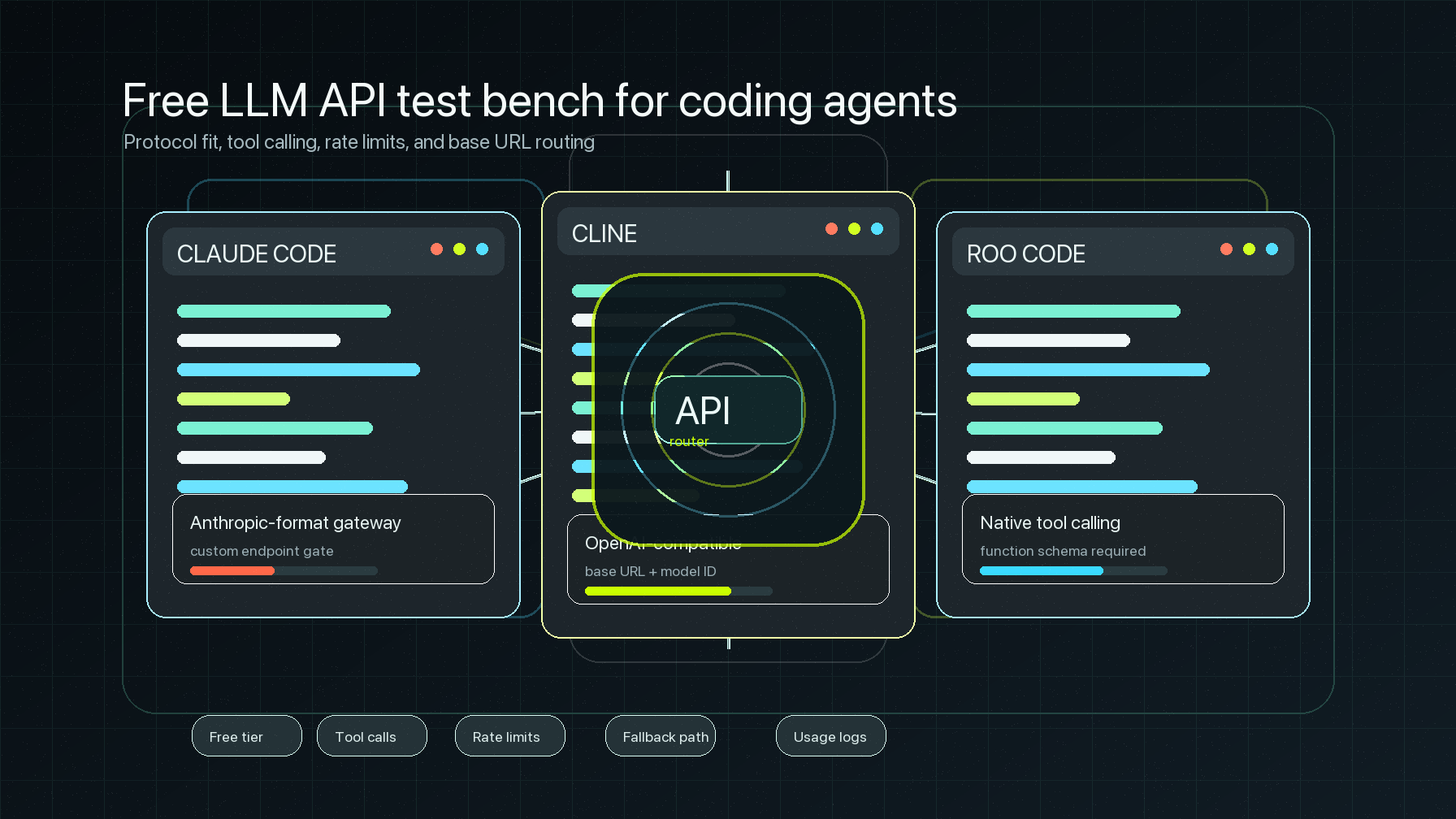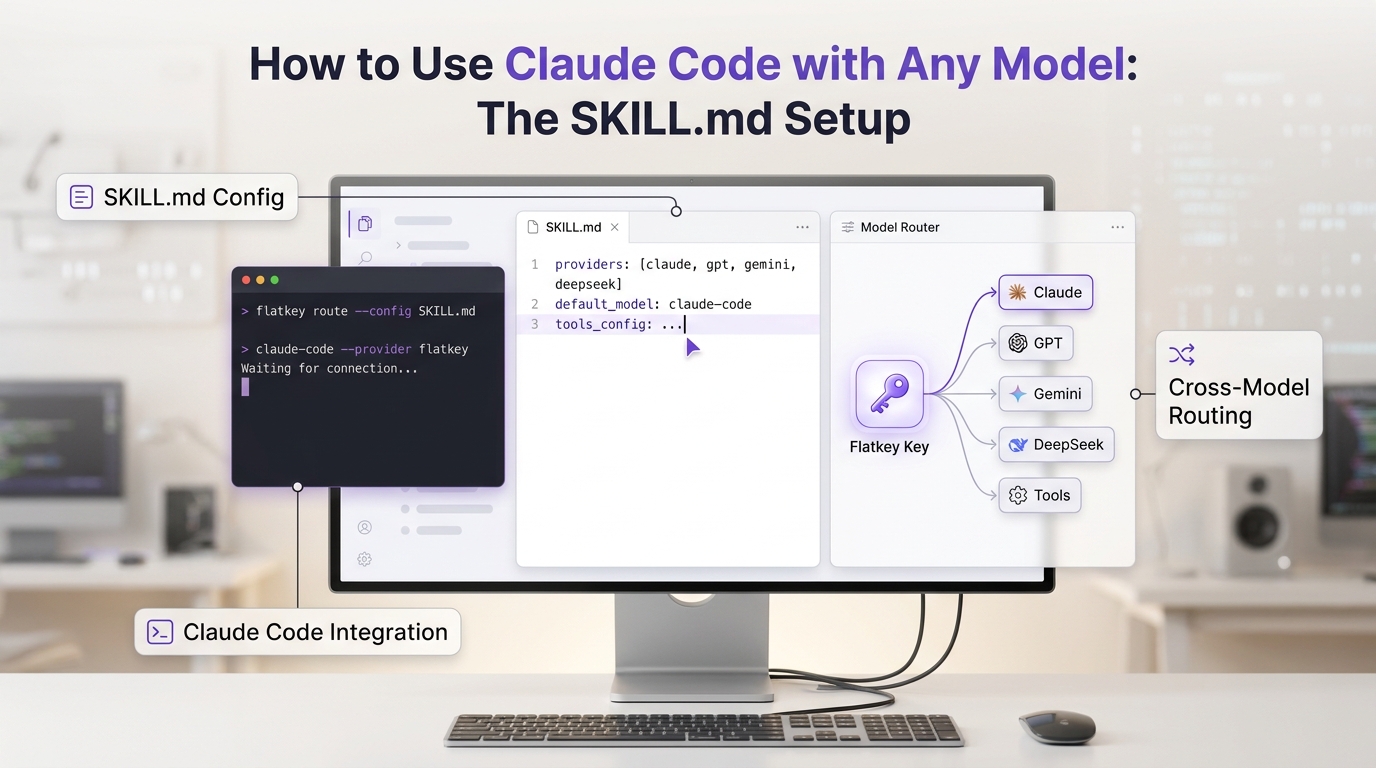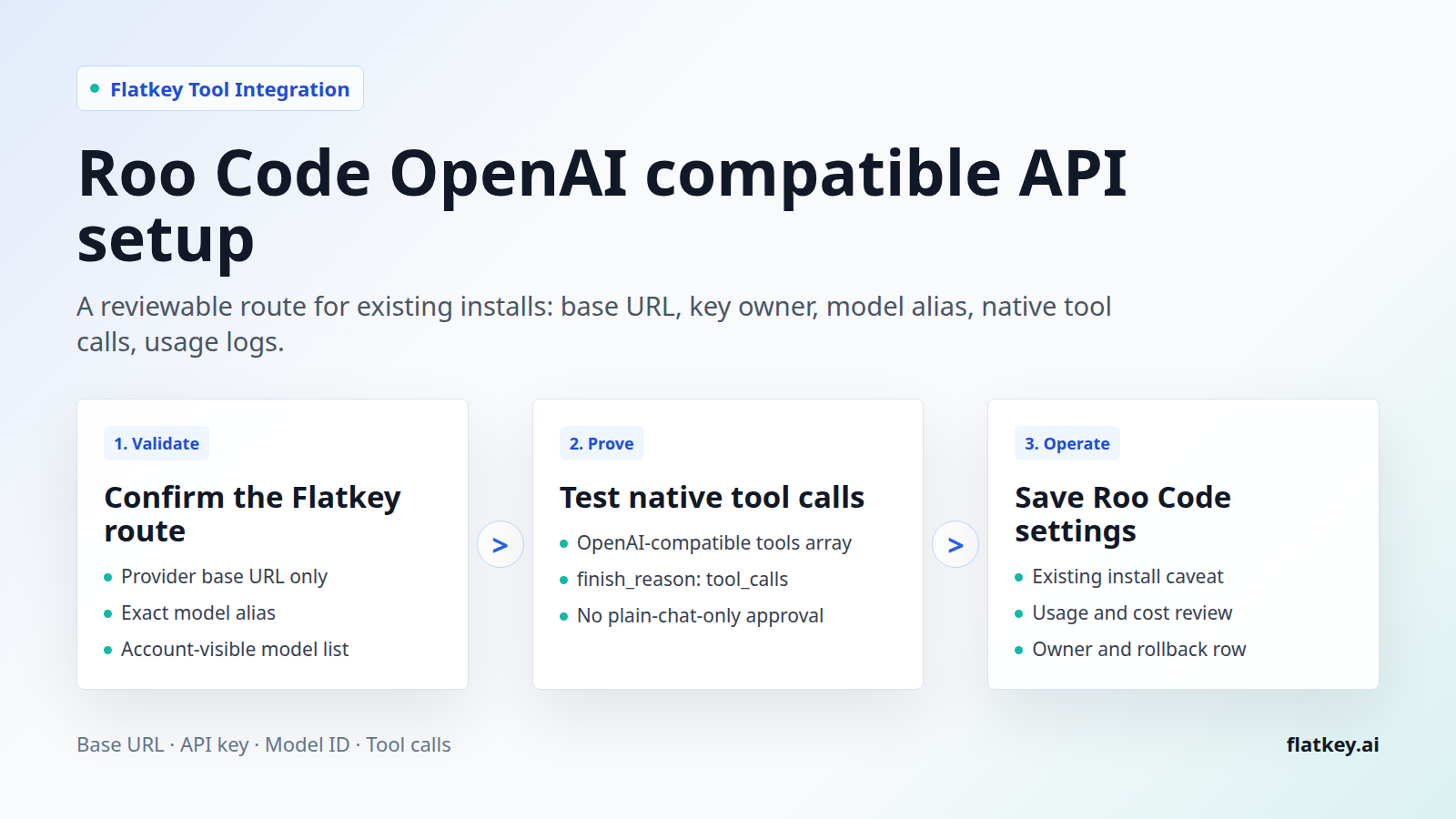
If you still maintain Roo Code installs, the Roo Code OpenAI compatible API route is mostly a configuration surface: provider type, Base URL, API key, and Model ID. The production risk is the part that is easy to miss. Roo Code's provider docs require native OpenAI-style tool calling for this path, so a plain chat response is not enough proof for a coding-agent workflow.
This guide shows how to route existing Roo Code configurations through Flatkey for developers, AI product teams, automation builders, platform engineers, finance operators, and procurement reviewers. It covers the current Roo Code caveat, Flatkey base URL validation, exact model aliases, native tool-call preflight, Roo Code settings, usage review, and rollback.
Source note: this was checked on June 29, 2026 against the official Roo Code documentation home, the official Roo Code OpenAI Compatible provider documentation, live Flatkey public pages, and one authenticated Flatkey gateway smoke test. Roo Code's documentation home says the Roo Code extension was shut down on May 15, 2026, so treat this as a setup guide for existing installs, archived configurations, or migration review rather than a recommendation to standardize a new rollout without checking extension availability.
Quick answer: Roo Code OpenAI compatible API setup
For a Roo Code OpenAI compatible API setup with Flatkey, choose OpenAI Compatible as the API provider, paste a current Flatkey base URL, use a Flatkey API key, and enter an exact Flatkey model alias that supports OpenAI-compatible chat and native tool calling. Then prove the route with a small curl request before trusting it inside a code workspace.
| Roo Code field | Flatkey value | Review check |
|---|---|---|
| API Provider | OpenAI Compatible | Use this provider for Flatkey, not the official OpenAI provider. |
| Base URL | The current Flatkey provider base URL for your account, such as https://router.flatkey.ai/v1 when that is the verified value |
Paste the base URL only. Do not paste the full /chat/completions endpoint into Roo Code. |
| API Key | A Flatkey key owned by the right user, team, or environment | Do not mix upstream provider keys with the Flatkey base URL. |
| Model ID | The exact Flatkey model alias enabled for that key | Confirm the alias supports the OpenAI chat endpoint and native tool calls before using it for coding tasks. |
| Validation | Small chat plus tool-call smoke test, then one safe Roo Code prompt | Check Flatkey usage after the test so finance and platform owners can reconcile the route. |
The shortest safe path is: prove Flatkey transport, prove model alias, prove native tool calling, then save the Roo Code settings. The rest of this Roo Code OpenAI compatible API guide turns that into a repeatable checklist.
What the current Roo Code docs confirm
The Roo Code documentation home currently carries an extension shutdown warning. That matters for planning. If your team is using an existing Roo Code install, the configuration details below are still useful for maintenance and migration review. If your team is choosing a new standard coding assistant, first verify the extension, marketplace, and fork status before assigning Roo Code to a wider group.
The Roo Code OpenAI Compatible provider page documents three main values for this provider class: Base URL, API Key, and Model ID. It also says to select OpenAI Compatible as the API provider. The Base URL is the provider endpoint and is explicitly not the official OpenAI API URL when you are using a non-OpenAI compatible provider.
The important Roo-specific constraint is tool calling. The same provider page says Roo Code uses native tool calling exclusively and has no XML-based fallback. It also says the selected model must support OpenAI-compatible tool calling. For a Roo Code OpenAI compatible API route through Flatkey, that means the model alias cannot be validated with plain text generation alone.
Flatkey values to confirm before opening Roo Code
1. Confirm the base URL for your account
Flatkey's homepage checked on June 29, 2026 has the title One API gateway for production AI teams and a meta description saying Flatkey unifies model access, routing, billing, usage analytics, and operational controls. Public homepage examples include OpenAI-style chat completions. An authenticated runtime check for this article used https://router.flatkey.ai/v1 and returned a valid model list.
Because public examples and account-specific routes can differ over time, copy the current Flatkey base URL from your console, docs, or working environment before production. In Roo Code, the Base URL should be the provider base, not /v1/chat/completions.
2. Confirm model alias and tool support
Flatkey's pricing page checked on June 29, 2026 says it publishes server-rendered pricing for 635 AI models across 23 providers. Its endpoint map includes /v1/chat/completions, /v1/responses, /v1/messages, /v1/images/generations, and /v1/video/generations. That is catalog and endpoint evidence, not a promise that every Flatkey key can call every model.
For a Roo Code OpenAI compatible API setup, choose one account-visible model alias that supports OpenAI-compatible chat and tool calls. The authenticated check for this article returned 56 account-visible models, and a tiny tool-call request with gpt-5.4-mini returned HTTP 200 with finish_reason: tool_calls and usage metadata. Treat that as dated route proof for the tested account, not as a permanent recommendation for every Flatkey workspace.
3. Confirm key ownership and usage review
Roo Code can act on a code workspace, so key ownership matters. Use a Flatkey key scoped to the developer, team, or environment that owns the risk. Record who can rotate the key, which model alias is allowed, which endpoint family is expected, and where the usage log will be reviewed after the first prompt.
Step-by-step: configure Roo Code with Flatkey
- Check whether this is an existing Roo Code install. Because the official docs currently mention extension shutdown, do not start by assuming a fresh marketplace install is available.
- Open Roo Code provider settings. In the existing extension configuration, go to the model provider or API configuration area.
- Select OpenAI Compatible. Use the provider type documented by Roo Code for non-OpenAI compatible endpoints.
- Set Base URL. Enter the verified Flatkey base URL, for example
https://router.flatkey.ai/v1when that is the current working value for your account. - Paste the Flatkey API key. Keep it out of repository files, issue comments, screenshots, and prompts.
- Set Model ID. Enter the exact Flatkey model alias. Do not use a generic vendor family name unless Flatkey exposes that exact alias to your key.
- Run the curl preflight below. Plain chat is useful, but Roo Code requires native tool calling, so include a tool schema in the test.
- Run one safe Roo Code prompt. Use a disposable workspace or a non-destructive task before pointing Roo Code at production repositories.
- Check Flatkey usage. Confirm timestamp, key owner, model alias, token usage, status, and cost visibility.
- Document rollback. Save the previous provider settings, model alias, and owner before asking more developers to switch.
Native tool-calling preflight template
The safest way to debug a Roo Code OpenAI compatible API setup is to test the Flatkey route outside Roo Code first. This template verifies the chat endpoint and asks the model to return an OpenAI-style tool call.
export FLATKEY_API_KEY="fk_replace_me"
export FLATKEY_BASE_URL="https://router.flatkey.ai/v1"
export FLATKEY_ROO_MODEL="replace-with-tool-capable-flatkey-model"

curl "$FLATKEY_BASE_URL/chat/completions" \
  -H "Authorization: Bearer $FLATKEY_API_KEY" \
  -H "Content-Type: application/json" \
  -d '{
    "model": "'"$FLATKEY_ROO_MODEL"'",
    "messages": [
      {
        "role": "user",
        "content": "Call route_check with status ok and do not include prose."
      }
    ],
    "tools": [
      {
        "type": "function",
        "function": {
          "name": "route_check",
          "description": "Return the routing smoke-test status.",
          "parameters": {
            "type": "object",
            "properties": {
              "status": { "type": "string" }
            },
            "required": ["status"]
          }
        }
      }
    ],
    "tool_choice": {
      "type": "function",
      "function": { "name": "route_check" }
    },
    "max_tokens": 64
  }'
A healthy response should include an assistant message with tool_calls. If this request fails, fix the Flatkey key, base URL, model alias, or model capability before changing Roo Code settings. If it succeeds but Roo Code fails, focus on the saved Roo Code fields, local network access, extension state, or the exact Model ID entered in the provider settings.
Failure modes to debug first
| Symptom | Likely cause | Fix |
|---|---|---|
| Invalid API key | The key was copied incorrectly, rotated, scoped to another environment, or belongs to an upstream provider instead of Flatkey. | Use a fresh Flatkey key, test with curl, then paste the same key into Roo Code. |
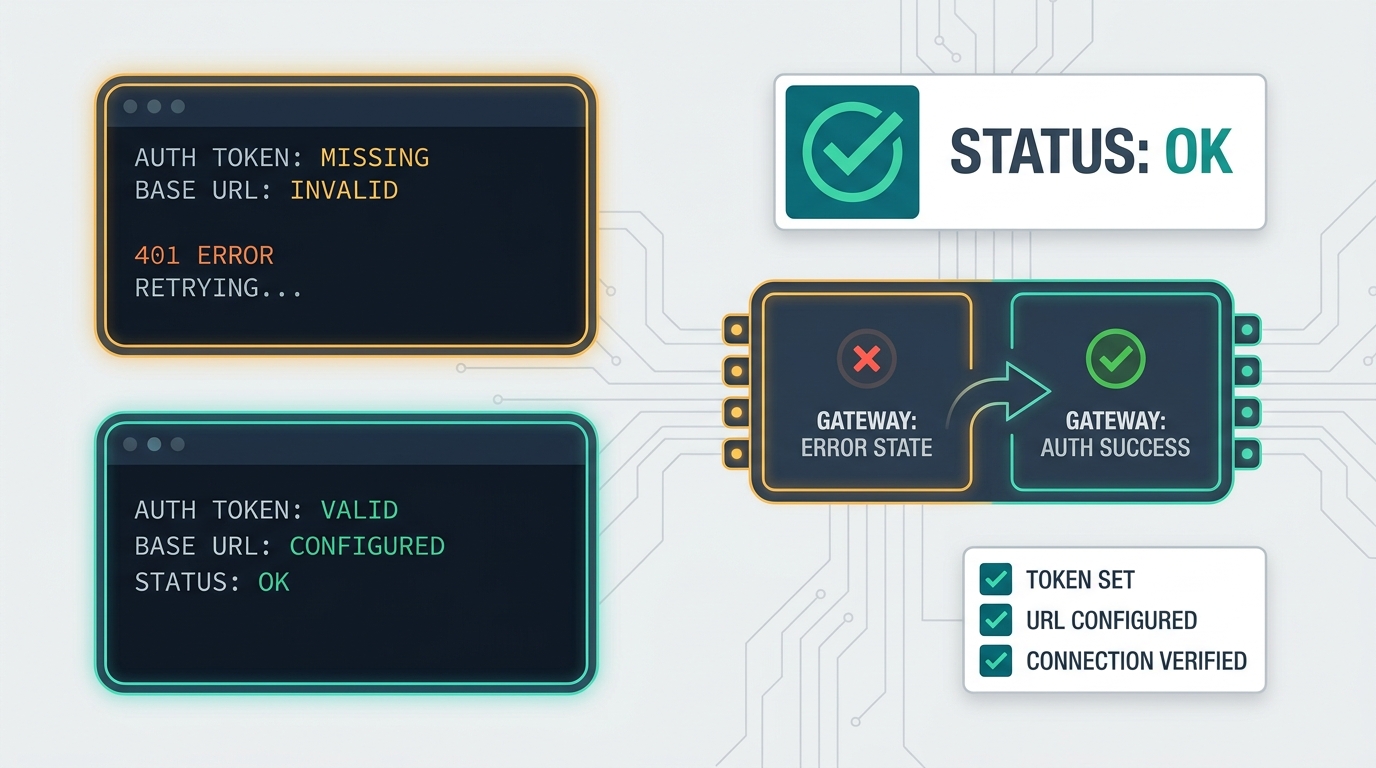
| Connection error | Wrong Base URL, full endpoint path pasted into the Base URL field, blocked network path, or local proxy issue. | Verify the provider base URL from the same machine and retest /chat/completions. |
| Model not found | The Roo Code Model ID does not match a Flatkey alias enabled for the key. | Copy the exact alias from Flatkey pricing, catalog, or account-visible model list. |
| Tool-calling error | The selected model can answer chat but does not support OpenAI-compatible native tool calls. | Switch to a tool-capable model alias and rerun the preflight before using Roo Code. |
| Extension unavailable | The current Roo Code distribution state does not support the planned install or update path. | Treat the setup as legacy maintenance and choose an active coding-agent workflow for new rollouts. |
| Usage cannot be reconciled | The team did not record key owner, model alias, Roo Code user, environment, or timestamp. | Add a runbook row before expanding the route to more developers. |
Existing install or new standard?
The Roo Code OpenAI compatible API route can be useful, but the extension shutdown notice changes the decision. Use this table before you ask a team to rely on it.
| Situation | Recommended action | Why it matters |
|---|---|---|
| Existing Roo Code install still used by a developer | Document the Flatkey route, test tool calls, and keep rollback. | Maintenance can continue while the team plans migration or replacement. |
| New team-wide coding-agent rollout | Verify current extension availability first, then compare active alternatives. | A shut-down extension can create support, security, and onboarding risk. |
| Tool-integration cluster standardization | Use the same Flatkey key, base URL, model-alias, and usage-log pattern across tools. | Consistency makes billing, debugging, and procurement review easier. |
Production runbook for Roo Code plus Flatkey
Before more developers use the Roo Code OpenAI compatible API route, write down the operational facts that make support and cost review possible.
| Runbook field | Record this |
|---|---|
| Roo Code scope | Existing local install, team image, archived profile, or migration-only test. |
| Flatkey key | Owner, environment, rotation date, and revocation owner. |
| Base URL | The exact provider base URL saved in Roo Code and the date it was verified. |
| Model alias | Roo Code Model ID, Flatkey model alias, endpoint family, and native tool-call result. |
| Smoke test | HTTP status, finish reason, usage total, and whether tool_calls appeared. |
| Usage review | Where platform and finance owners check request volume, cost, and unexpected model changes. |
| Rollback | Previous provider config, previous model alias, and who can restore it. |
Internal migration path
If your team is standardizing OpenAI-compatible tool configurations on Flatkey, keep this setup aligned with the rest of the integration cluster. Use the OpenAI-compatible API migration guide as the base URL and rollback hub. For another desktop-client pattern, compare the Cherry Studio API setup guide. For coding-agent routing on developer machines, review the cc-switch Claude Code guide.
After the first safe Roo Code prompt works, review the current Flatkey model pricing page, then Get a key for each separate user, team, or environment boundary.
FAQ
Does Roo Code still support OpenAI-compatible providers?
The Roo Code OpenAI Compatible provider documentation still describes the provider fields: API Provider, Base URL, API Key, and Model ID. The documentation home also says the Roo Code extension was shut down on May 15, 2026, so verify your install path before a new rollout.
What Base URL should I use for the Roo Code OpenAI compatible API provider?
Use the current Flatkey provider base URL for your account. This article's authenticated Flatkey checks used https://router.flatkey.ai/v1, while public examples can change. In Roo Code, paste the base URL only, not the full chat-completions endpoint.
Why is native tool calling required?
Roo Code's provider docs say native tool calling is the only supported tool protocol for OpenAI-compatible providers. A model that can answer plain chat but cannot produce OpenAI-style tool calls is not enough for a reliable Roo Code setup.
Should the Model ID match the Flatkey model alias exactly?
Yes. Use the exact Flatkey alias that your key can call, and verify it with a tool-call smoke test. Model family names, provider marketing names, and gateway aliases can differ.
Can I use this guide for new Roo Code deployments?
Use it only after checking current Roo Code availability. The Flatkey routing checks are still useful, but the Roo Code shutdown notice means new team-wide deployments need an explicit product-support decision.
Conclusion
A safe Roo Code OpenAI compatible API setup through Flatkey should prove more than a successful chat response. Confirm the current base URL, use a Flatkey-owned key, select an exact model alias, test native tool calls, and check usage visibility before giving Roo Code access to real code work. When the route is ready for another user or environment, Get a key and keep the rollback row next to the setup instructions.