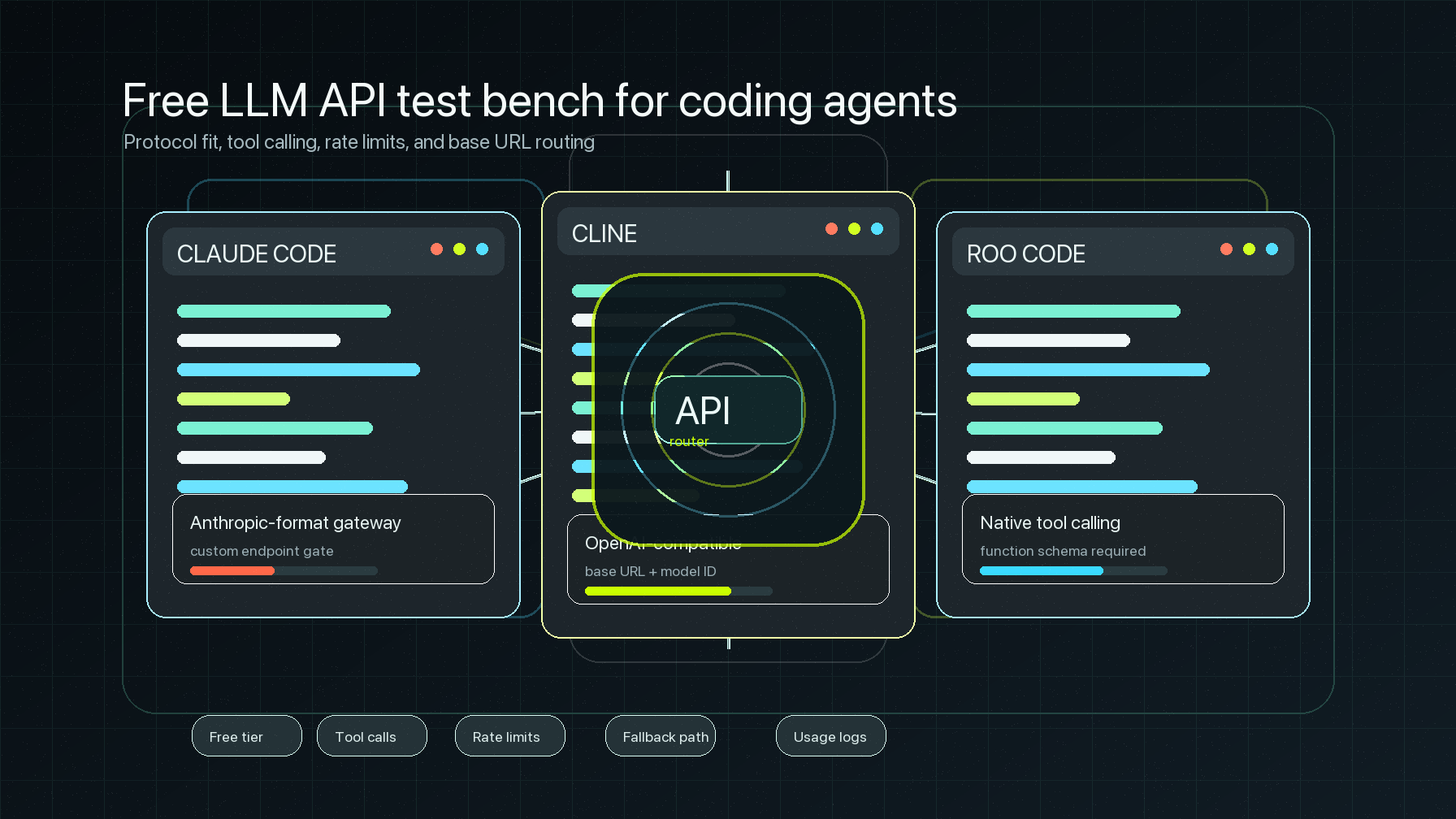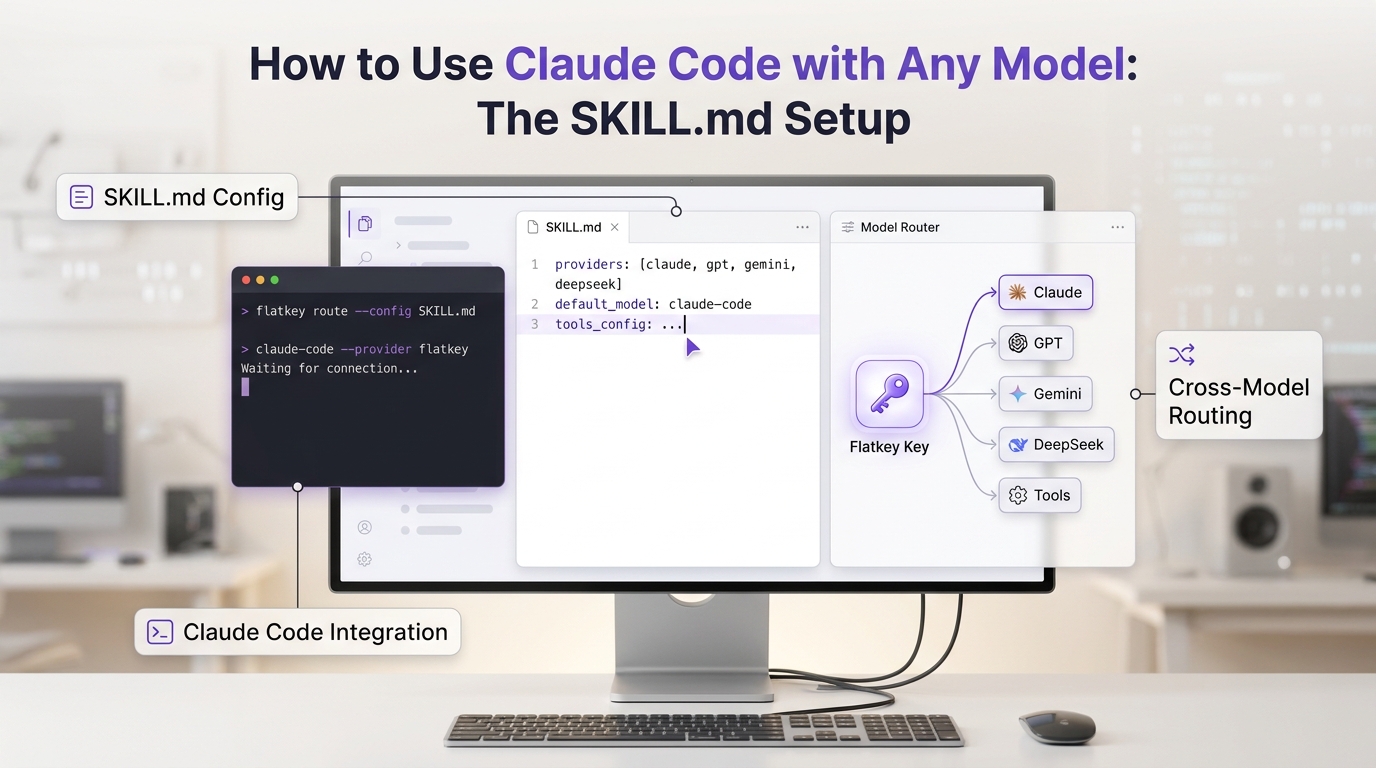
If you are setting up the Cline OpenAI compatible API provider, the visible fields are simple: Base URL, API key, and model ID. The production risk is less obvious. A wrong path, stale model alias, unchecked model capability, or unowned key can make Cline fail only after a developer starts relying on it inside VS Code.
This guide shows a practical Flatkey setup for developers, AI product teams, automation builders, platform engineers, finance operators, and procurement reviewers who want Cline to use one OpenAI-compatible Flatkey route instead of separate model-provider credentials. It covers the Cline fields, Flatkey base URL checks, a preflight curl test, verification, failure modes, and the usage handoff.
Source note: this was checked on June 29, 2026 against the official Cline OpenAI Compatible provider documentation, the official Cline OpenAI Compatible admin configuration documentation, and live Flatkey public pages. No account-specific Flatkey key or Cline workspace was available for a live Cline smoke test, so the request snippets below are templates to run with your own key and model alias.
Quick answer: Cline OpenAI compatible API setup
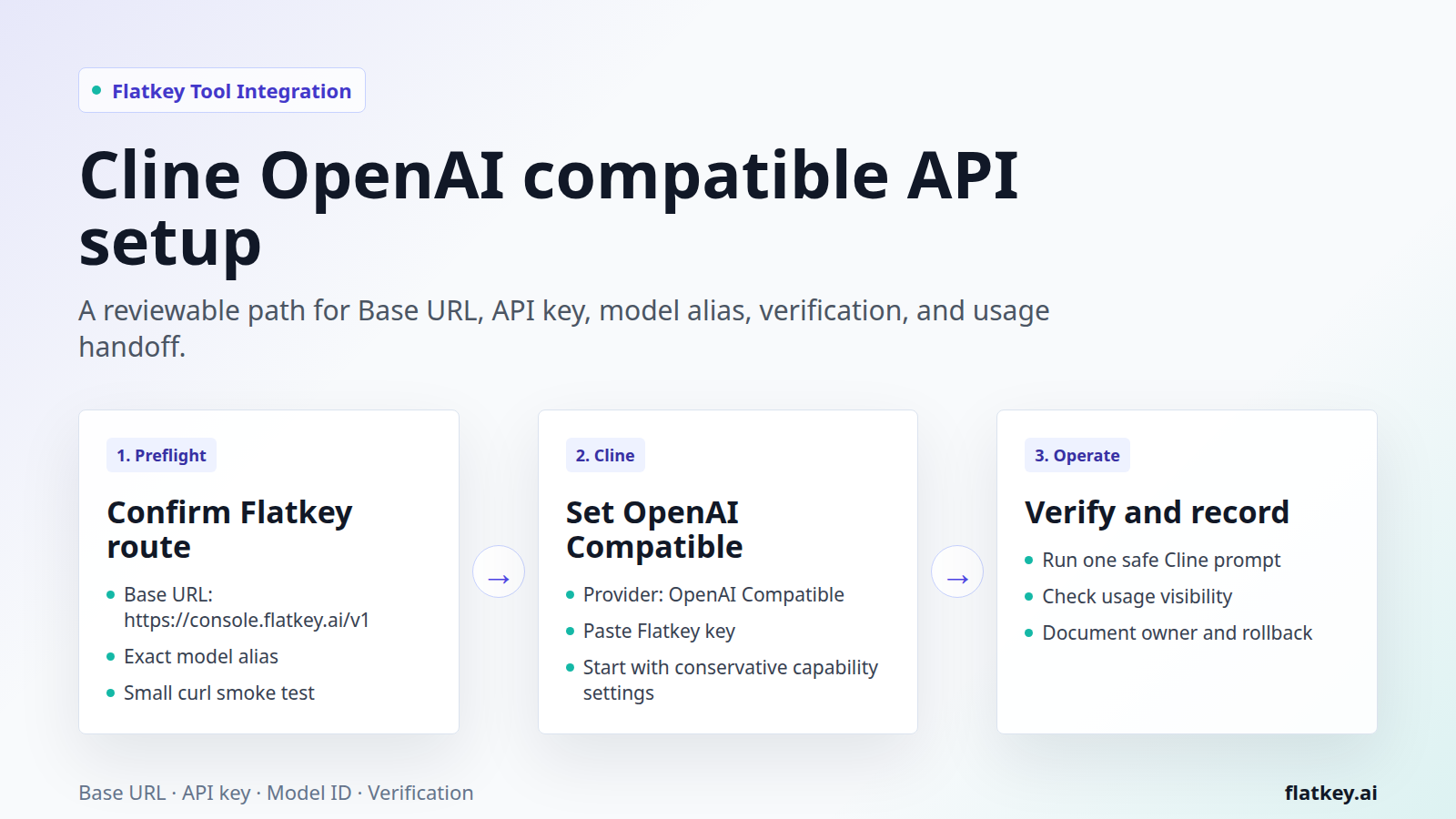
For a Cline OpenAI compatible API setup with Flatkey, choose OpenAI Compatible as the Cline API provider, use the current Flatkey base URL, paste a Flatkey API key, and enter an exact Flatkey model alias as the model ID. Then verify with one small prompt before you enable more advanced model configuration.
| Cline field | Flatkey value | Review check |
|---|---|---|
| API Provider | OpenAI Compatible | Use this provider for Flatkey, not the official OpenAI provider, because Flatkey is the compatible endpoint. |
| Base URL | https://console.flatkey.ai/v1 when this is the current value shown for your Flatkey account |
Use the base URL, not the full /chat/completions path. Copy the live value from Flatkey before production. |
| API Key | A Flatkey key owned by the developer, team, or environment | Do not paste upstream provider keys into Cline if Flatkey is meant to be the gateway. |
| Model | The exact Flatkey model alias enabled for that account | Model names are provider-specific. Use the alias that Flatkey expects, not a generic vendor family name. |
| Model Configuration | Context, output token, image, computer-use, and price settings only after basic chat works | Do not mark capabilities as available until the selected Flatkey route and model alias have been tested. |
That is the short path. The rest of this Cline OpenAI compatible API guide is about making the setup repeatable enough for teams: first prove transport, then prove the model alias, then document the route that finance and platform owners will review.
What the current Cline docs confirm
The official Cline OpenAI Compatible provider page says Cline supports providers that expose APIs compatible with the OpenAI API standard, including local models, cloud providers, and any other OpenAI-compatible endpoint. It also says the OpenAI Compatible page is for providers other than the official OpenAI API, which has its own configuration page.
For this integration, the important Cline fields are direct. Cline documents Base URL, API Key, and Model ID as the main settings. In the Cline settings panel, the documented flow is to select OpenAI Compatible, enter the provider base URL, enter the API key, and choose or enter the model ID. The same page lists advanced model configuration fields such as max output tokens, context window size, image support, computer use, input price, and output price.
The official troubleshooting section is also useful for Flatkey setup. Cline calls out invalid API key, model-not-found, connection errors, and unexpected results. Those are the same first four errors to separate when a Cline OpenAI compatible API route fails through a gateway.
Flatkey values to confirm before opening Cline
Do these checks before you paste anything into Cline. They keep the setup tied to current Flatkey account state instead of a copied example.
1. Confirm the current Flatkey base URL
Flatkey's homepage checked on June 29, 2026 has the title One API gateway for production AI teams and a meta description saying Flatkey unifies model access, routing, billing, usage analytics, and operational controls. The same public page shows OpenAI-style examples using https://console.flatkey.ai/v1 and https://console.flatkey.ai/v1/chat/completions.
For Cline, use the base URL value in the Base URL field. Do not paste the full chat-completions URL into Cline. If a future Flatkey console value differs, use the value shown by Flatkey for your account and keep the working value in your runbook.
2. Confirm the model alias and endpoint family
Flatkey's pricing page checked on June 29, 2026 says it publishes server-rendered pricing for 635 AI models across 23 providers. Its endpoint map includes /v1/chat/completions, /v1/responses, /v1/messages, /v1/images/generations, and /v1/video/generations.
Use those facts as dated public evidence for catalog shape, not as a guarantee that your Flatkey key can call every model or endpoint. For the Cline OpenAI compatible API provider, pick a model alias that supports the OpenAI-compatible chat path and Cline's expected capability set.
3. Confirm who owns the key
Cline runs inside a developer workflow, so personal keys are tempting. For a production team route, use a Flatkey key owned by the right user, team, or environment. Record who can rotate it, what model aliases it should reach, and which Cline users or organizations depend on it.
Step-by-step: configure Cline with Flatkey
- Open Cline settings. In the Cline extension, open the settings panel from the gear icon.
- Select OpenAI Compatible. In API Provider, choose OpenAI Compatible. This is the Cline provider type for a Flatkey OpenAI-compatible route.
- Set Base URL. Enter the current Flatkey base URL, for example
https://console.flatkey.ai/v1when that is the value shown for your account. - Paste the Flatkey API key. Use a Flatkey key for the user, team, or environment. Keep it out of prompts, repo files, issue comments, and screenshots.
- Set Model. Enter the exact Flatkey model alias. If Cline shows a picker, still verify that the chosen alias is approved for this workload.
- Keep advanced model configuration conservative. Start with a small max output token value and known context window. Turn on image support or computer-use style capability flags only after the selected route proves them.
- Verify the connection. Use Cline's verification flow where available, then run one small Cline prompt that does not touch production code or secrets.
- Check Flatkey usage visibility. After a successful Cline prompt, review Flatkey usage for the key, model alias, and timestamp. This is the handoff point for finance and platform reviewers.
- Write down rollback. Record the previous Cline provider settings or the prior working model alias before asking more developers to switch.
Template preflight test before Cline verification
The fastest way to debug a Cline OpenAI compatible API setup is to test the Flatkey route outside Cline first. If this curl request fails, fix the key, base URL, or model alias before changing Cline settings.
export FLATKEY_API_KEY="fk_replace_me"
export FLATKEY_MODEL="replace-with-your-flatkey-model-alias"

curl https://console.flatkey.ai/v1/chat/completions \
  -H "Authorization: Bearer $FLATKEY_API_KEY" \
  -H "Content-Type: application/json" \
  -d '{
    "model": "'"$FLATKEY_MODEL"'",
    "messages": [
      {"role": "user", "content": "Return one short Cline routing check."}
    ],
    "max_tokens": 32
  }'
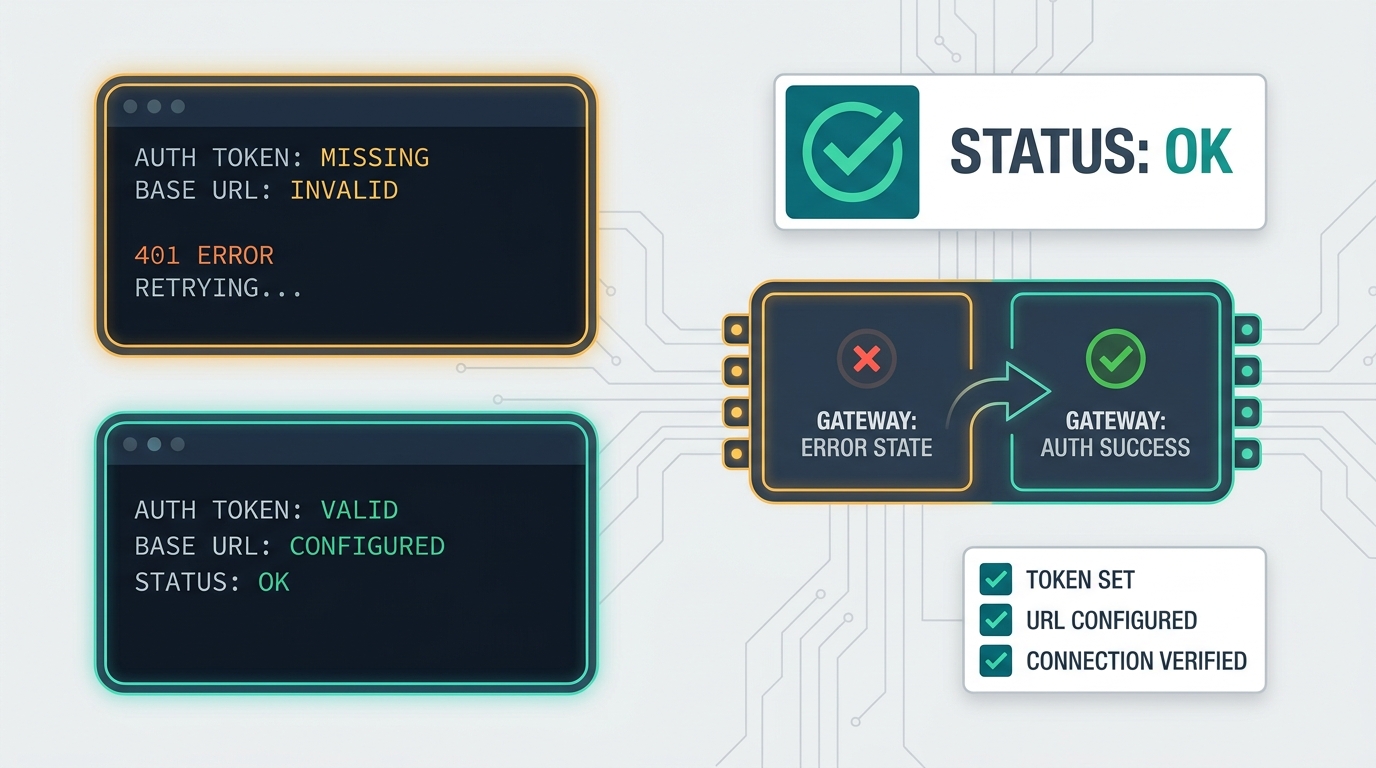
If curl succeeds but Cline fails, the issue is probably Cline-side field mapping, a model capability flag, network access from the developer machine, or the exact model ID saved in Cline. If curl fails, capture the status code and response body before editing Cline.
Failure modes to debug first
| Symptom | Likely cause | Fix |
|---|---|---|
| Invalid API key | The Flatkey key was copied incorrectly, expired, belongs to another environment, or an upstream provider key was pasted instead. | Rotate or recreate the Flatkey key, retest with curl, then paste it into Cline. |
| Connection error | Wrong Base URL, missing /v1, blocked network path, proxy issue, or full endpoint path pasted instead of the base URL. |
Open the Base URL from the same machine, retest curl, and keep Cline's Base URL field to the provider base route. |
| Model not found | The Cline model ID does not match a Flatkey alias enabled for the key or endpoint family. | Copy the exact Flatkey alias from the console or pricing/catalog view, then retest one simple chat request. |
| Unexpected results | Wrong model alias, unsupported capability flag, mismatched context window, or a route that behaves differently from the expected OpenAI-compatible shape. | Disable optional capabilities, lower token limits, test plain chat, then re-enable advanced options one at a time. |
| Usage cannot be reconciled | The setup did not record key owner, user, model alias, environment, or Cline workspace. | Add a runbook row with Cline user or org, Flatkey key owner, model alias, endpoint family, and expected workload. |
Enterprise Cline configuration with Flatkey
For individual developers, the VS Code settings flow is enough. For managed teams, Cline's admin documentation describes remote provider configuration through the hosted admin console. Administrators can add an OpenAI-compatible endpoint as the organization-wide LLM provider, select OpenAI Compatible, configure a required Base URL, add optional custom headers, and save the configuration for organization members.
That enterprise path is useful when the Cline OpenAI compatible API route should be consistent across a team. It lets platform owners centralize the provider setting while still requiring the same Flatkey checks: current base URL, correct authentication details, approved model aliases, and verification from a member account.
| Team decision | Recommended starting point | Why it matters |
|---|---|---|
| Developer-owned setup | Use the Cline extension settings panel and a developer or team Flatkey key. | Fastest for a pilot, but every developer can drift if the setup is not documented. |
| Organization-wide setup | Use Cline remote provider configuration and set OpenAI Compatible as the enforced provider. | Better for teams that need a standard Flatkey route, consistent model access, and central review. |
| Custom headers | Leave empty unless Flatkey or your network layer explicitly requires them. | Extra headers can hide routing behavior. Keep the first working setup simple. |
Production runbook for Cline plus Flatkey
Before more developers use the Cline OpenAI compatible API route, record the following details. The goal is to make failures, cost review, and rollback boring.
| Runbook field | Record this |
|---|---|
| Cline scope | Individual developer, team, or organization-wide remote configuration. |
| Flatkey key | Owner, environment, rotation date, and who can revoke it. |
| Base URL | The exact Base URL saved in Cline and the date it was verified. |
| Model alias | The Cline model ID, Flatkey alias, endpoint family, and expected capabilities. |
| Capability settings | Context window, max output tokens, image support, computer-use/tool behavior, and any pricing fields entered in Cline. |
| Usage review | Where the team checks request volume, cost, and unexpected model changes after the first Cline prompt. |
| Rollback | The previous provider config, previous model alias, and who can restore it. |
Internal migration path
If your team is standardizing multiple OpenAI-compatible tools on Flatkey, keep the Cline setup consistent with the rest of the integration cluster. Use the OpenAI-compatible API migration guide as the canonical base URL migration hub. For another desktop client pattern, compare the Cherry Studio API setup guide. For developer machine routing with model switches, see the cc-switch Claude Code setup.
After your first Cline prompt works, review the current Flatkey model pricing page, then Get a key for any additional user, team, or environment that needs a separate credential boundary.
FAQ
What Base URL should I use for the Cline OpenAI compatible API provider?
Start with the current Flatkey base URL shown for your account. On June 29, 2026, Flatkey's public homepage showed https://console.flatkey.ai/v1 in OpenAI-style examples. Do not paste the full /chat/completions endpoint into Cline's Base URL field.
Should the Cline model ID match the Flatkey model alias exactly?
Yes, use the exact Flatkey model alias that your key is allowed to call. Cline's docs say model IDs differ by OpenAI-compatible provider, so do not rely on a generic family name unless Flatkey exposes that exact alias.
Can I use the official OpenAI provider in Cline with Flatkey?
Use OpenAI Compatible for Flatkey. Cline's OpenAI Compatible documentation is specifically for providers other than the official OpenAI API that expose an OpenAI-compatible endpoint.
Does Cline support team-level OpenAI-compatible configuration?
Yes. Cline's admin documentation describes remote provider configuration where an administrator can configure an OpenAI-compatible endpoint as the organization-wide LLM provider, including a required Base URL and optional custom headers.
Why test with curl before verifying in Cline?
A curl preflight separates Flatkey transport problems from Cline field problems. If curl fails, fix the key, base URL, or model alias first. If curl succeeds but Cline fails, debug Cline settings, capability flags, network access, and the saved model ID.
Conclusion
A reliable Cline OpenAI compatible API setup needs more than pasting a key. Confirm the Flatkey base URL, use the exact model alias, keep model capabilities conservative until plain chat works, and leave a runbook that connects Cline usage to Flatkey billing and routing review. When you are ready to standardize the route, Get a key and test the smallest Cline prompt before moving everyday coding work onto it.