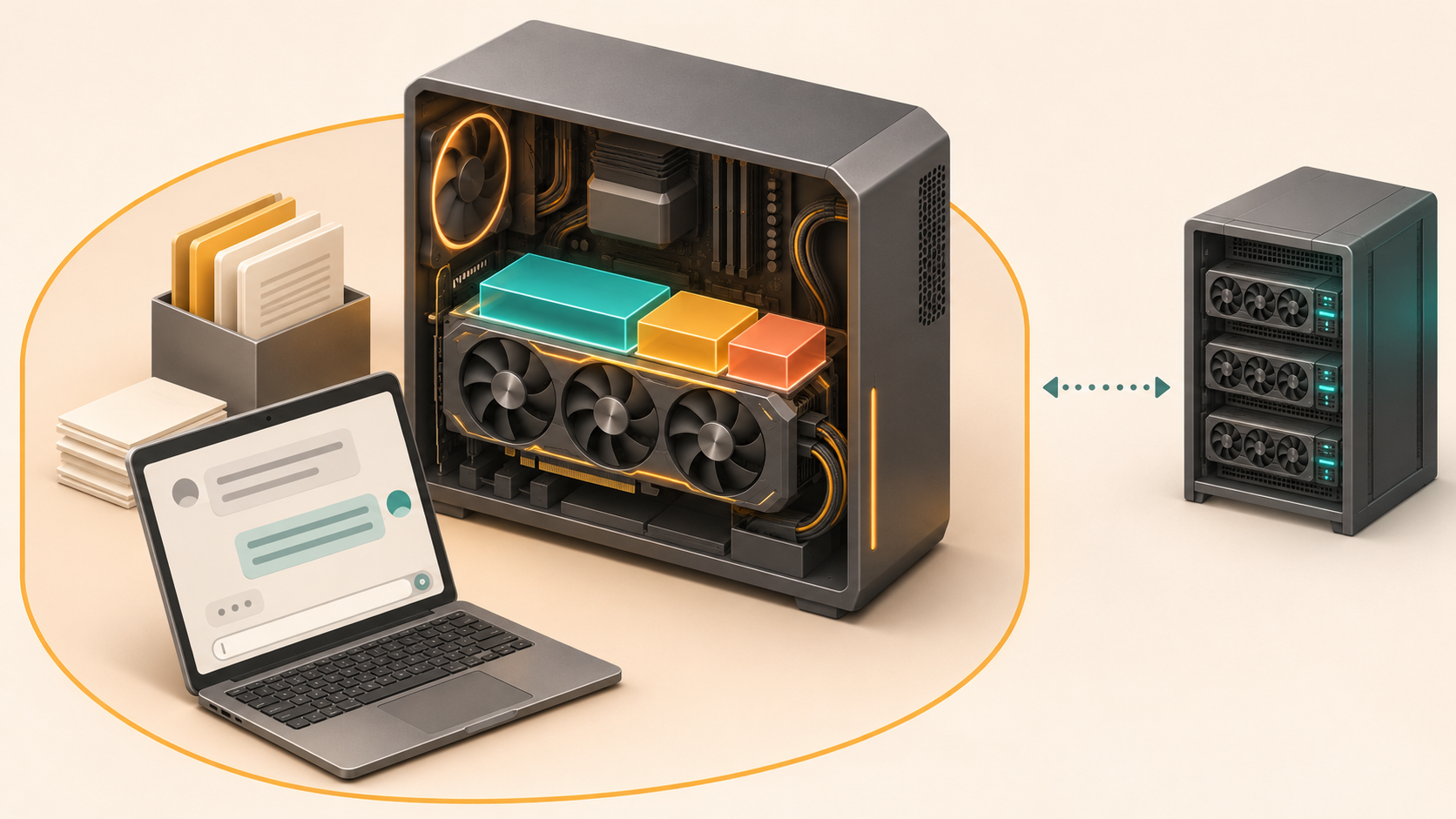
A local LLM runs inference on your own computer. To get started, choose a small model, download the weights, and send a request to 127.0.0.1, without using a remote endpoint. Then check where the model was loaded and whether it responds well to your questions in Portuguese.
This guide's path uses Ollama with qwen3:4b, a single request, and a context of 4,096 tokens. You will have a reproducible initial test, a memory calculation you can adapt, and criteria for deciding when it is worth moving to a cloud GPU. The capacity figures below are calculated estimates, not measurements from a specific machine.
What to choose for your first local LLM
Start with the task: summarize short notes, review text, or answer questions about a provided excerpt. Set aside five to ten examples in Portuguese, with expected answers and errors you will not accept. A model that fits on your computer can still fail at the task.
In this tutorial, qwen3:4b serves as a concrete starting point. As of the November 18, 2026 query, the official Ollama catalog identifies this variant as Qwen3 with 4.02 billion parameters, Q4_K_M quantization, and an approximately 2.5 GB download. This describes the published artifact; it does not promise that the process will use only 2.5 GB of memory. Record the version and metadata you find when downloading, because a tag may change.
| Check before downloading | Practical decision |
|---|---|
| Portuguese quality | Test your examples, including accents, instructions, and domain terms |
| Size and quantization | Compare the available file with free memory, leaving room for context and execution |
| License | Read the variant's license before the intended use |
| Required context | Start with short excerpts; larger documents require a different memory calculation |
| Compatible hardware | Check the GPU, system, and driver in the runtime documentation |
A graphical interface can make the first contact easier; this guide uses the command line to make the model, address, and options explicit. You do not need to train a model to perform this initial test.
How much RAM and VRAM does a local LLM need?
Separate three components: weights + KV cache + execution memory. On the GPU, all of this competes with memory used by the display and other applications. In RAM, you must also reserve space for the system. On Macs with unified memory, the CPU and GPU share capacity; do not count the same gigabytes twice.
Weights: a theoretical floor, not final usage
For a dense model with P parameters and idealized storage of b bits per parameter:
weights in GiB = P × b ÷ 8 ÷ 2^30
| Parameters | 16-bit, idealized | 4-bit, idealized |
|---|---|---|
| 4 billion | 7.45 GiB | 1.86 GiB |
| 8 billion | 14.90 GiB | 3.73 GiB |
| 14 billion | 26.08 GiB | 6.52 GiB |
These values do not include quantization scales, metadata, tensors at another precision, buffers, or cache. Therefore, do not replace the actual size of a GGUF file with the four-bit column. Decimal GB also differs from GiB: 1 GiB = 1,073,741,824 bytes.
KV cache: context and concurrency change the calculation
For a decoder Transformer with conventional caching, an approximation is:
KV in bytes = 2 × layers × KV heads × dimension per head
              × tokens per sequence × simultaneous sequences
              × bytes per cache element
The factor of two represents keys and values. Use KV heads, not necessarily all attention heads. The official Qwen3-4B configuration reports 36 layers, 8 KV heads, and a dimension of 128 per head. With a cache of 2 bytes per element and one sequence of 4,096 tokens, the calculation is:
2 × 36 × 8 × 128 × 4096 × 1 × 2
= 603,979,776 bytes
= 0.5625 GiB
Keeping these assumptions, 8,192 tokens use 1.125 GiB; two sequences of 4,096 tokens also use 1.125 GiB. This is a planning calculation: the runtime may reserve buffers, use another cache type, or apply optimizations. The Hugging Face documentation on KV cache explains the differences between storage strategies.
To illustrate the complete budget, assume 3 GiB for weights, the calculated 0.5625 GiB for KV, and a hypothetical 1 GiB reserve for execution. The subtotal would be 4.5625 GiB. The 3 GiB and 1 GiB are inputs selected for the example, not measured usage by Qwen3-4B. Replace them with observations from your machine and keep additional headroom.
If you run out of memory, reduce the context, close applications, try a smaller model or suitable quantization, and test quality again. For a deeper look at sizing, see the guide on GPU memory for LLMs.
How to run the model on your computer
1. Install Ollama and check the environment
On Windows and macOS, use the official download, install it, and open the application. The dedicated pages document the current requirements for Windows and macOS. On Linux, the official installation provides:
curl -fsSL https://ollama.com/install.sh | sh
This command runs the remote installer; read the script and follow your environment's policy before running it. For NVIDIA, check that the driver recognizes the card with nvidia-smi. For AMD and Apple, consult the official hardware matrix; memory capacity alone does not guarantee acceleration.
In another terminal:
ollama -v
Keep the application open. On Linux, if no service is running, start ollama serve. If port 11434 is already occupied by Ollama, use the existing instance rather than opening another one. Do not change the listener to a public address to follow this tutorial.
2. Download and inspect the selected variant
ollama pull qwen3:4b
ollama show qwen3:4b
ollama list
The download requires a connection. Check the architecture, parameters, and quantization in the metadata; also record the listed ID. Management commands are available in the CLI reference.
3. Make a local call with explicit context
Save the content below as pedido-local.json, in UTF-8. The file works with the cURL command shown below on different systems:
{
  "model": "qwen3:4b",
  "prompt": "Resuma em uma frase, em português do Brasil: A equipe testou um modelo no próprio computador antes de avaliar uma GPU na nuvem.",
  "stream": false,
  "think": false,
  "options": {
    "num_ctx": 4096,
    "num_predict": 128,
    "temperature": 0
  },
  "keep_alive": "5m"
}
In the macOS or Linux terminal:
curl http://127.0.0.1:11434/api/generate -H "Content-Type: application/json" --data-binary @pedido-local.json
In Windows PowerShell, use curl.exe instead of curl in the same command to invoke the cURL executable.
The endpoint and response format are available in the Ollama generation reference; runtime parameters are available in the Modelfile reference. stream: false requests a complete JSON response, and think: false disables reasoning mode in this compatible model. num_predict limits generation; it does not reserve space for an unlimited document. The explicit num_ctx option avoids relying on the installation's default context. The context documentation confirms that increasing this window requires more memory.
Look for done: true and the text in response. The wording may vary even at zero temperature. Check whether the summary preserves the meaning of the passage; a successful connection is not a quality evaluation.
4. Check the GPU and record the result
Immediately after the call, run:
ollama ps
Read the PROCESSOR column: it indicates CPU, GPU, or a split between both. On NVIDIA, compare the usage reported by nvidia-smi before and during the test, remembering that the total includes other processes. A model partially in RAM may work, but you need to measure whether the response time meets the task's requirements.
Record the Ollama version, model ID, quantization, context, hardware, and examples used. Measure the first call and subsequent calls separately, since loading the model can affect the time. To calculate the generation rate from the JSON:
tokens per second = eval_count ÷ (eval_duration ÷ 1,000,000,000)
This rate uses the generation duration provided by the API; it does not represent total latency or time to first token. Repeat your examples and note content errors alongside the timings.
When finished, unload the model:
ollama stop qwen3:4b
The command unloads the model and does not necessarily stop the server. If you started ollama serve in the foreground only for the test, stop that process with Ctrl+C.
Privacy: what stays local and what requires verification
Using a local LLM reduces the need to send text to a remote inference service. Even so, review the entire application: chat interface, plugins, web search, document extraction, embeddings, logs, and backups may follow different paths.
Ollama documents local-only mode with OLLAMA_NO_CLOUD=1 or disable_ollama_cloud in ~/.ollama/server.json. Configure it in the correct process or service and restart it according to the official FAQ. This Ollama control does not configure other applications.
After downloading the model, test the request without a connection and without external tools. Check where the client stores conversations and whether that folder is included in synchronization. Keep the API restricted to the computer. Running locally does not replace access control, disk protection, or reviewing how your application handles data.
When to Stay Local and When to Move to the Cloud
| Observed situation | Next test |
|---|---|
| Individual use, sufficient quality, and acceptable time | Continue locally and maintain a fixed evaluation set |
| Insufficient memory for the required context | Compare a smaller model and a GPU with more memory |
| Multiple users cause queues or failures | Test the same workload on a remote GPU, with explicit concurrency |
| The computer needs to remain available or the service needs to run continuously | Include availability, maintenance, and recovery in the comparison |
| You need a third-party-hosted model and accept that data path | Evaluate an API, with its own controls and budget |
Compare costs using the same productive hours and the same number of accepted responses. Locally, consider hardware, power, and maintenance; in the cloud, consider GPU, storage, traffic, and idle time. Do not conclude that renting or buying is cheaper by looking at only an hourly price.
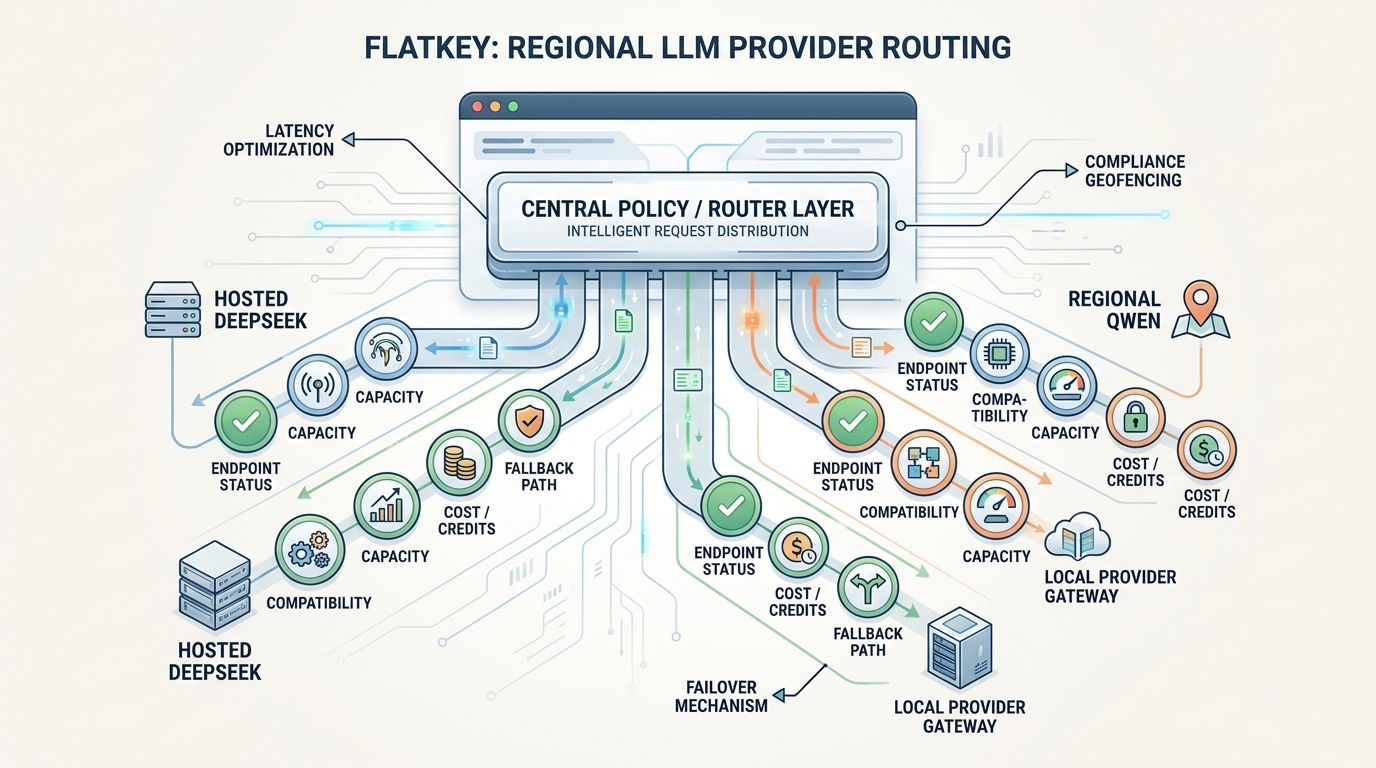
If the limit of your local LLM is memory or serving capacity, see Flatkey's cloud GPU options and validate the available configuration with the same tests. For the remote deployment stage, follow the guide on Ollama on a cloud GPU with a protected API. The server address, authentication, and data path change at this stage.
Frequently Asked Questions
Can I run a local LLM without a dedicated GPU?
It may be possible to use CPU and RAM with a compatible model. The decision depends on the available memory and how long you are willing to wait. Check the processor used by the runtime and test the task; there is no universal tokens-per-second rate for every computer.
Is an 8 GB GPU enough?
The capacity label alone does not provide the answer. Compare the actual weights, cache for the chosen context, buffers, and memory already in use. This guide's 4B example is an initial test; it is not a guarantee for every 4B model, every quantization, or every 8 GB card.
Do I need to stay connected after downloading?
An already downloaded model can run local inference without relying on a remote endpoint. Test the complete client while disconnected: features such as web search, cloud models, and integrations may require a network connection.
Does the test already allow querying private PDFs?
Not yet. The request uses text directly in the prompt. For documents, you also need to extract text, define the context, and, if necessary, build chunk retrieval. See the guide on RAG with documents in Portuguese, also assessing where embeddings and storage run.