Ollama Cloud GPU: Run a Secure Remote API Server
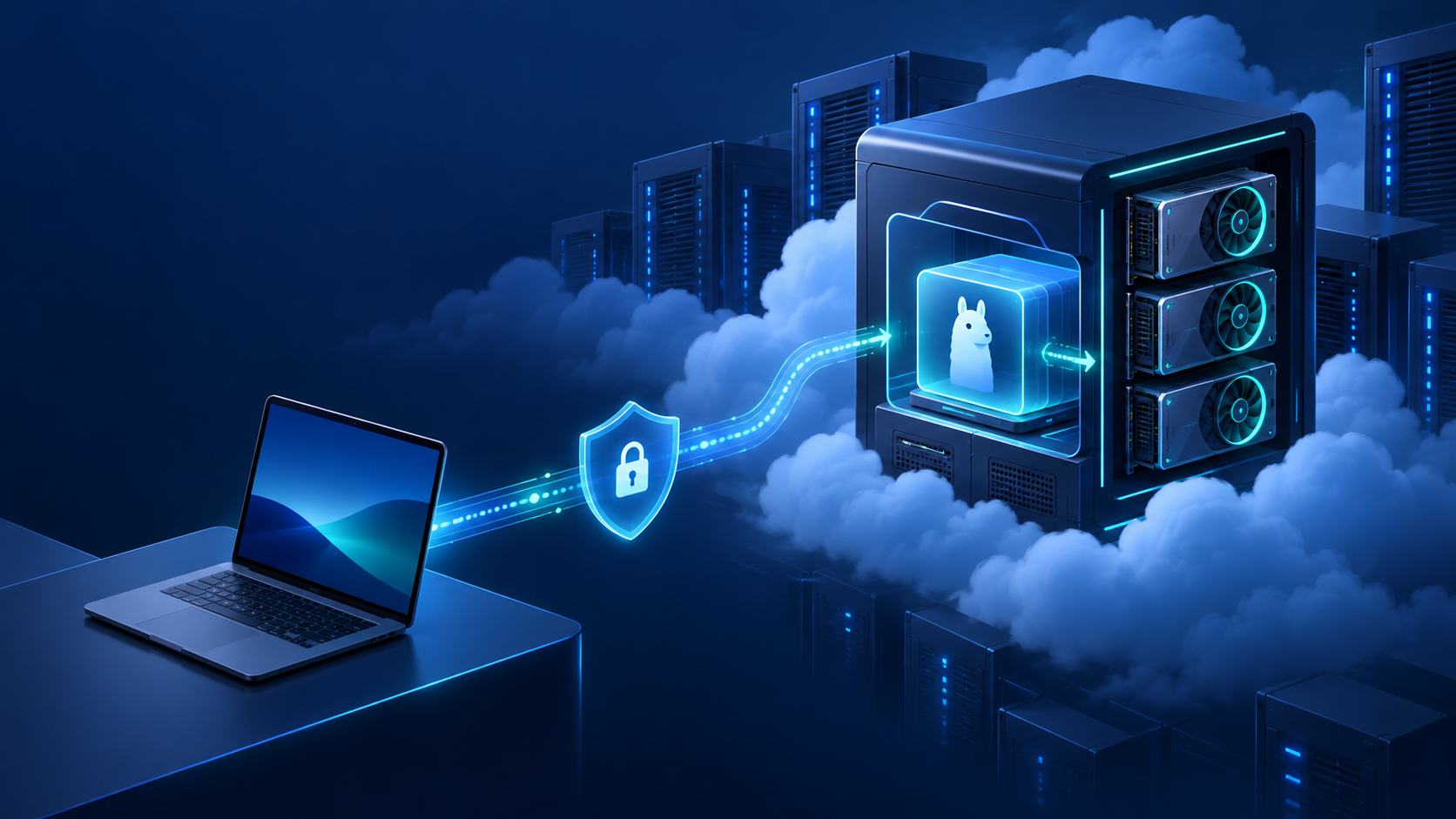
Running an Ollama cloud GPU server gives you direct control over the model, quantization, runtime, and data path. It also gives you an operational responsibility that a laptop install hides: the local Ollama API is not a public-facing authentication boundary. A safe remote setup keeps Ollama on a private loopback port and puts TLS plus caller authentication at an edge proxy.
This guide shows a practical NVIDIA/Docker deployment for an Ollama cloud GPU server, a Caddy HTTPS edge that accepts an OpenAI-style bearer token, and a remote client configuration. It is aimed at independent developers and small AI teams that want to run an open-weight model on rented GPU capacity without publishing port 11434 to the internet.
The short version: run Ollama with its host port bound to
127.0.0.1, block public access to port 11434 in the cloud firewall, and expose only an HTTPS reverse proxy on ports 80/443. Make that proxy validate a token before it forwards traffic to Ollama.
Ollama documents 127.0.0.1:11434 as its default bind and says that a local server’s API requests do not require authorization. That is convenient for local development, but it means a bare remotely reachable endpoint is the wrong security boundary. Ollama’s FAQ and API introduction are worth keeping open while you deploy.
What this Ollama cloud GPU architecture protects
The architecture has four boundaries, each with a distinct job:
Remote client / OpenAI SDK
        |
        | HTTPS + Bearer token
        v
Public edge proxy (Caddy, ports 80/443 only)
        |
        | localhost HTTP
        v
Ollama API (127.0.0.1:11434)
        |
        v
GPU runtime and model volume
The edge proxy is the only component that accepts internet traffic. Ollama remains reachable only from the same host. This prevents a cloud firewall mistake, an accidentally open Docker mapping, or an unauthenticated caller from becoming direct access to your model server.
| Layer | Required role | Do not do this |
|---|---|---|
| Cloud firewall / security group | Allow only the ports you intentionally expose; restrict SSH to your IP or private network. | Open TCP 11434 to 0.0.0.0/0. |
| Docker port mapping | Bind Ollama to loopback with 127.0.0.1:11434:11434. |
Use a public host mapping unless a private network boundary already protects it. |
| HTTPS proxy | Terminate TLS, validate the caller token, and forward to loopback. | Treat Ollama’s local endpoint as if it authenticates remote callers. |
| Client | Send the token to the proxy and use a specific model tag. | Assume every OpenAI endpoint or parameter works without testing. |
For a production system with multiple users, use a private overlay network or an identity-aware proxy with individual identities and revocation. The single bearer-token example below is a practical server-to-server starting point, not a replacement for SSO, per-user audit trails, rate limits, or policy enforcement.
Before you rent a GPU: size the workload, not the download
An Ollama cloud GPU is a sensible choice when you need control over model files, a specific quantization, a private runtime, or sustained use of one model family. It is not automatically the lower-cost choice for spiky traffic or a product that changes models frequently.
Start with the actual model tag, quantization, context window, and number of simultaneous requests. Model weights are only part of the memory budget: context and parallel requests consume additional VRAM. Ollama’s documentation notes that parallel request processing increases the effective context allocation, and its ollama ps output shows whether a model is fully on GPU, fully on CPU, or split between both. See the Ollama 70B model VRAM requirements and LLM GPU memory requirements guides before committing to a GPU shape.
| Your goal | First deployment choice | What to measure before scaling |
|---|---|---|
| Single-user development or evaluation | One GPU that comfortably fits the quantized model plus context headroom. | GPU residency, first-token latency, peak VRAM, and quality on real prompts. |
| Internal API for a small team | One private server plus an HTTPS edge and a defined queue policy. | Concurrent requests, tail latency, 503s, and token rotation workflow. |
| Shared product endpoint | Multiple replicas or a managed API fallback, with observability and identity controls. | Queue depth, error rate, accepted-output rate, and recovery time. |
How to choose a cheap GPU cloud for Ollama in 2026
The query “best cheap gpu cloud for ollama 2026” does not have one durable answer. A cheap hourly GPU that forces CPU offload, runs out of context headroom, or spends most of the day idle is not cheap in use. Compare candidates with the same model tag and prompt set, then record:
- billed GPU time, storage, egress, and setup time;
- model-load time and GPU residency from
ollama ps; - time to first token, end-to-end latency, and failed requests;
- the context window and concurrency actually supported; and
- cost per accepted output, not only cost per GPU-hour.
Use Flatkey’s GPU cloud comparison to frame provider fit, and its GPU rental prices guide to avoid overlooking the cost items around the instance itself. Do a short, repeatable pilot before reserving capacity.
Step 1: prepare the NVIDIA host
This walkthrough assumes a supported Linux GPU host, Docker, an NVIDIA driver, and an NVIDIA Container Toolkit installation. Confirm that the host sees its GPU first:
nvidia-smi
Then configure Docker’s NVIDIA runtime and verify that a container can see the same device:
sudo nvidia-ctk runtime configure --runtime=docker
sudo systemctl restart docker

# Example CUDA image; use a tag compatible with your host driver and OS.
docker run --rm --gpus all \
  nvidia/cuda:12.6.0-base-ubuntu22.04 nvidia-smi
Ollama’s Docker documentation uses NVIDIA Container Toolkit and --gpus=all for NVIDIA-backed containers. If this validation command fails, stop here and fix the driver/runtime layer; model troubleshooting will only obscure the root cause.
Before starting the container, configure your cloud firewall or security group:
- Allow SSH only from an approved source range, a bastion, or a private network.
- Allow TCP 80 and 443 only if this server will use a public HTTPS hostname.
- Do not allow TCP 11434 from the public internet.
- If you use a host firewall such as UFW, make its rules match the cloud firewall rather than relying on only one layer.
Step 2: run Ollama privately on the GPU host
Use a named volume so model files survive a container recreation. The loopback address on the left side of -p is intentional: it lets Caddy on the same machine reach Ollama, while preventing a direct external connection to the service.
docker pull ollama/ollama:<verified-ollama-tag>

docker run -d \
  --name ollama \
  --restart unless-stopped \
  --gpus all \
  -v ollama:/root/.ollama \
  -p 127.0.0.1:11434:11434 \
  ollama/ollama:<verified-ollama-tag>
Replace <verified-ollama-tag> with the release tag your team has tested; do not silently promote a production service by pulling an unreviewed image at restart time. Ollama also supports a native Linux install and a systemd service, but the same boundary applies: retain the loopback bind and put remote access behind an authenticated proxy. The official Linux guide documents both the service workflow and its environment-variable override mechanism.
Pull a small test model that fits your selected GPU. This example uses a current tag from Ollama’s OpenAI-compatibility examples; substitute the exact model and quantization you intend to serve.
docker exec ollama ollama pull qwen3:8b

curl -sS http://127.0.0.1:11434/api/chat \
  -H 'Content-Type: application/json' \
  -d '{
    "model": "qwen3:8b",
    "messages": [{"role": "user", "content": "Reply with a three-word GPU health check."}],
    "stream": false
  }'

docker exec ollama ollama ps
ollama ps is a useful acceptance check for an Ollama cloud GPU deployment. A 100% GPU processor indication means the loaded model is entirely on the GPU; a CPU/GPU split may be acceptable for a test but is a signal to measure the latency and memory tradeoff before production.
Step 3: add an HTTPS API edge with a bearer token
Ollama can expose its API through a proxy, and it provides both its native /api surface and a local OpenAI-compatible /v1 surface. Its local OpenAI client examples use an API-key value that Ollama ignores, which is precisely why the proxy below performs the authorization check before forwarding traffic. Ollama’s OpenAI compatibility documentation also makes clear that compatibility is a subset, so plan a real integration test rather than a blanket assumption.
This Caddy pattern lets an OpenAI-style client use Authorization: Bearer <token>. Caddy validates that header, removes it before the request reaches the local service, and proxies the request over loopback.
First generate a high-entropy token and save it in your team’s secret manager. Do not put it in source control or a shell history you do not control.
openssl rand -hex 32
Create a systemd override for Caddy and set the generated value as OLLAMA_API_TOKEN:
# sudo systemctl edit caddy
[Service]
Environment="OLLAMA_API_TOKEN=replace-with-your-secret-manager-value"
Then configure /etc/caddy/Caddyfile with a hostname whose DNS points at the server:
ollama.example.com {
    @authorized {
        header Authorization "Bearer {$OLLAMA_API_TOKEN}"
    }

    handle @authorized {
        reverse_proxy 127.0.0.1:11434 {
            # The edge checked this header; Ollama does not need the token.
            header_up -Authorization
        }
    }

    handle {
        respond "Unauthorized" 401
    }
}
Use an actual DNS name in place of ollama.example.com. Caddy treats a domain site address as an HTTPS site with a managed certificate; ensure DNS and the intended inbound ports are ready before reloading it. The Caddy request-matcher, mutually exclusive handle blocks, and reverse-proxy header controls document the directives used above.
Validate and reload the configuration:
sudo caddy validate --config /etc/caddy/Caddyfile --adapter caddyfile
sudo systemctl daemon-reload
sudo systemctl reload caddy
Test both sides of the boundary. The first request must succeed from the host. The second must succeed over TLS only when the token is correct. A third request without it should return 401.
# Host-local health check
curl -sS http://127.0.0.1:11434/api/chat \
  -H 'Content-Type: application/json' \
  -d '{"model":"qwen3:8b","messages":[{"role":"user","content":"health check"}],"stream":false}'

# Remote request through the edge
curl -sS https://ollama.example.com/api/chat \
  -H "Authorization: Bearer $OLLAMA_API_TOKEN" \
  -H 'Content-Type: application/json' \
  -d '{"model":"qwen3:8b","messages":[{"role":"user","content":"health check"}],"stream":false}'

# Expected: HTTP 401
curl -i https://ollama.example.com/api/chat
Do not substitute basic authentication for this exact client pattern without changing the client design. HTTP Basic and OpenAI SDKs both use the
Authorizationheader. The bearer-token edge above preserves the usual OpenAI SDK shape and keeps the local Ollama endpoint private.
Step 4: call the remote Ollama API from an OpenAI client
Ollama documents http://localhost:11434/v1 as its local OpenAI-compatible base URL. With the HTTPS edge in place, change only the host and use the proxy token as the client API key:
import os
from openai import OpenAI

client = OpenAI(
    base_url="https://ollama.example.com/v1/",
    api_key=os.environ["OLLAMA_API_TOKEN"],
)

response = client.chat.completions.create(
    model="qwen3:8b",
    messages=[
        {"role": "user", "content": "Give me a concise deployment checklist."}
    ],
)

print(response.choices[0].message.content)
This is a remote Ollama cloud GPU API, but it is not automatically a drop-in replacement for every OpenAI feature. Before moving live traffic, test the exact endpoints and behaviors your app uses: streaming, tool calls, structured outputs, embeddings, vision inputs, error handling, context limits, and client timeouts. The model itself also determines what is meaningful or supported.
Step 5: tune concurrency and model residency deliberately
Avoid increasing parallelism because a server is quiet during a single curl test. Ollama documents a default context window of 4096 tokens, a request queue setting, and memory-dependent parallel model handling. Each added parallel request increases effective context allocation, so an Ollama cloud GPU that fits one request can still fail under concurrent traffic.
Use this controlled rollout order:
- Load one model at the intended quantization and run a representative prompt set.
- Record VRAM, latency, and GPU residency with
nvidia-smiandollama ps. - Raise context length or parallel requests one at a time.
- Set an explicit overload policy: queue, reject, or route to a fallback.
- Repeat after every model, driver, runtime, or context-window change.
Ollama’s FAQ documents OLLAMA_CONTEXT_LENGTH, OLLAMA_NUM_PARALLEL, OLLAMA_MAX_QUEUE, and OLLAMA_KEEP_ALIVE. It also notes that 503 responses can indicate an overloaded queue. Keep a runbook for those signals instead of treating them as random API failures.
| Signal | Likely cause | First response |
|---|---|---|
ollama ps reports CPU/GPU split |
The model does not fit entirely in available VRAM. | Reduce model size or context, choose a different quantization, or move to a larger GPU. |
| Remote request returns 401 | The edge did not receive the expected bearer token. | Verify OLLAMA_API_TOKEN, the Caddy service override, and the client’s api_key. |
| Proxy returns 502 | Caddy cannot reach Ollama on loopback or the container is down. | Run the host-local curl check and inspect docker logs ollama. |
| 503 under traffic | Queue or memory pressure. | Reduce concurrency/context, set a queue policy, or add capacity/fallback. |
| Slow first request after idle | The model was unloaded or needs to warm. | Decide whether a longer keep_alive budget is worth the reserved VRAM. |
For a more general self-hosted server pattern, see how to build an OpenAI-compatible inference server. That guide covers broader edge, fallback, and acceptance-test concerns; this article stays focused on a secure remote Ollama workflow.
When not to run an Ollama cloud GPU server
Self-hosting is valuable when the infrastructure itself is part of the product requirement. It is less compelling when the goal is simply to call the best available model for a changing workload. Consider a managed model API or a hybrid fallback when:
- traffic is bursty and the GPU will sit idle;
- you need several model families or frequent model changes;
- your team cannot maintain drivers, model volumes, TLS, token rotation, observability, and incident response; or
- the GPU path has worse accepted-output cost once retries and operator time are included.
Flatkey can serve as that comparison or fallback path: one key and one balance across 300+ official models and 1,000+ pay-per-call tools. Keep the client on an OpenAI-compatible shape and measure the self-hosted route against a managed alternative using the same prompts, success criteria, and timeout policy.
Production checklist for an Ollama cloud GPU
- [ ] The GPU is visible through both
nvidia-smiand a Docker GPU test. - [ ] Ollama’s Docker port is mapped only to
127.0.0.1:11434. - [ ] Port 11434 is not public in the cloud firewall or host firewall.
- [ ] The proxy serves HTTPS on a real hostname and rejects requests without a token.
- [ ] The bearer token is stored outside the codebase and has a documented rotation process.
- [ ] A remote
/api/chatrequest succeeds with the token and fails without it. - [ ] A remote
/v1/chat/completionstest succeeds from the actual SDK your app uses. - [ ] The exact model tag, quantization, context window, and concurrency target are documented.
- [ ]
ollama ps, GPU telemetry, proxy logs, and 5xx rates are part of the runbook. - [ ] You have tested an overload, restart, and token-rotation scenario.
- [ ] You have compared the Ollama cloud GPU route with a managed API baseline where model flexibility or availability matters.
Frequently asked questions
Does Ollama authenticate a remote API by itself?
Do not rely on the local API for remote authentication. Ollama’s local-server examples omit authorization or use an API-key value that the local server ignores. Keep the service private and require auth at a TLS proxy, private network boundary, or identity-aware gateway.
Can I use an OpenAI SDK with an Ollama cloud GPU?
Yes, Ollama documents a local OpenAI-compatible /v1 base URL and common client examples. Point the SDK at your HTTPS proxy’s /v1/ path and let that proxy validate the bearer token. Test the exact endpoints you use because compatibility is a subset rather than an unconditional guarantee.
What is the best cheap GPU cloud for Ollama in 2026?
The best cheap GPU cloud for Ollama in 2026 is the one that fits your real model, context, and concurrency without hidden idle time or CPU offload. Run the same short benchmark on a few candidates and compare cost per accepted output, not a provider’s headline hourly rate.
Why does my Ollama container run on CPU instead of GPU?
Start by checking the host with nvidia-smi, then confirm Docker can see the GPU after NVIDIA Container Toolkit configuration. Finally inspect ollama ps: a model can be partly or fully on CPU when it does not fit in available GPU memory.
Should I expose port 11434 directly to save a proxy hop?
No. The small local proxy hop is the right trade for TLS, caller authentication, secret rotation, and an explicit public boundary. Exposing a bare local model server turns an infrastructure shortcut into an unnecessary security and abuse risk.
Final recommendation
The reliable way to run an Ollama cloud GPU server is straightforward: validate the GPU runtime, bind Ollama to loopback, use an HTTPS proxy with a bearer-token check, and test both native /api and OpenAI-compatible /v1 calls from the client you will actually ship.
That gives you the control of a self-hosted model without making an unauthenticated local endpoint your public API. Measure model fit, context, concurrency, and accepted-output cost before expanding the server—and keep a managed API baseline for the workloads where operating your own GPU adds more complexity than value.
Sources
- Ollama Linux installation and systemd guidance
- Ollama Docker and NVIDIA GPU deployment
- Ollama FAQ: network exposure, GPU residency, context, queue, and concurrency
- Ollama API introduction and local base URLs
- Ollama OpenAI compatibility
- Caddy header matchers, handle blocks, and reverse proxy configuration