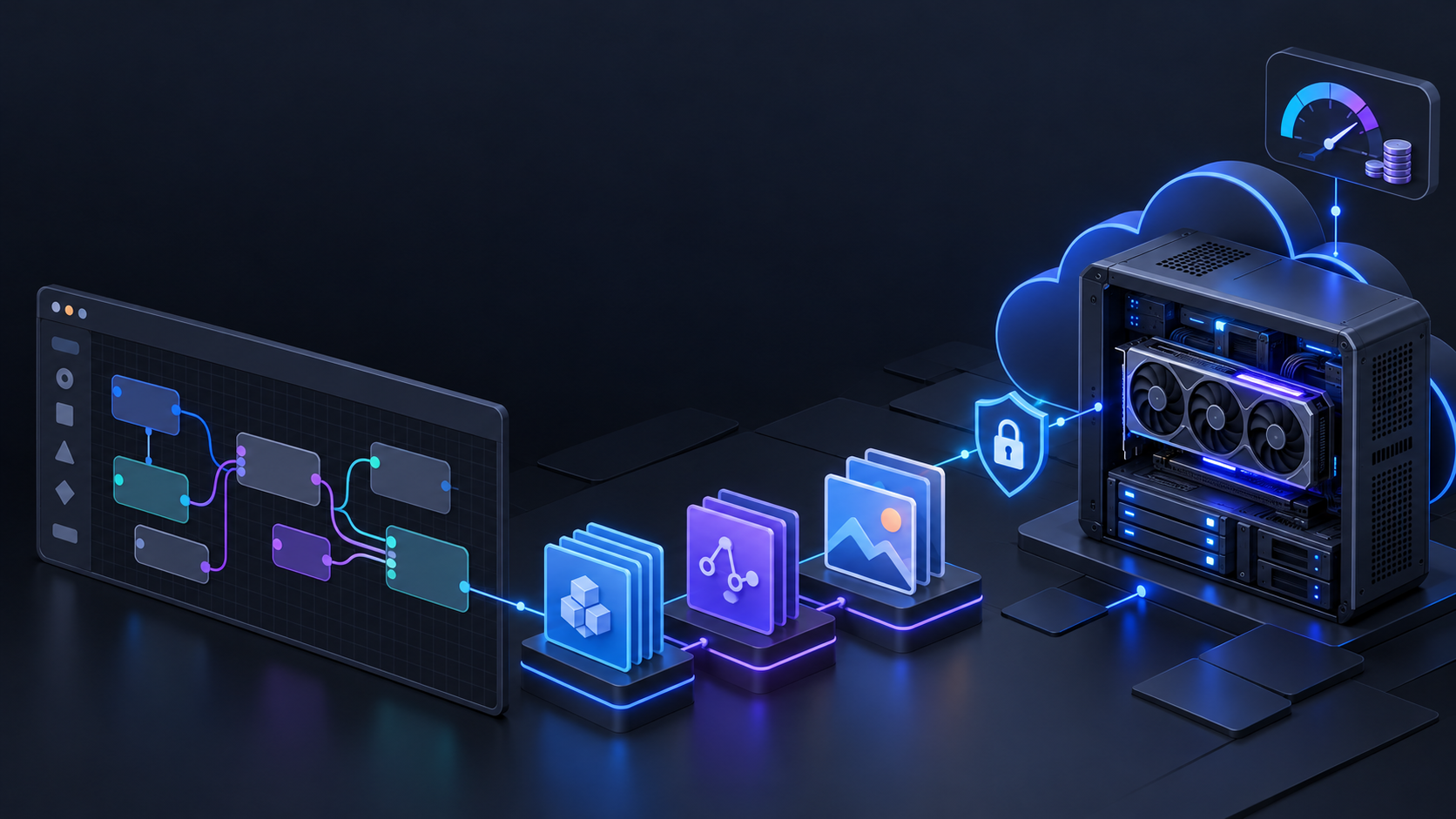
Running ComfyUI in the cloud is straightforward. Keeping it repeatable, private, and inexpensive is the real work.
A useful ComfyUI cloud GPU setup separates four concerns: disposable compute, persistent files, private access, and a stopping rule. Treat the GPU instance as replaceable; put models, workflows, inputs, and outputs on storage that survives it. That gives you a setup you can restart without re-downloading a workflow stack or wondering where yesterday’s images went.
This guide is provider-neutral. It shows how to set up a ComfyUI cloud GPU for interactive work, how to plan storage, and how to calculate costs without pretending that a single hourly GPU rate tells the whole story.
The short version
For most independent developers and small AI teams, start with this deployment pattern:
- Choose an interactive GPU VM or pod with enough VRAM for one real workflow—not a theoretical benchmark.
- Attach persistent storage before downloading models or installing custom nodes.
- Keep the ComfyUI web process private by default; use an authenticated desktop, tunnel, or provider proxy rather than an open public port.
- Save each working graph, model revision, and output to the persistent mount.
- Measure a representative generation, then stop the GPU as soon as the working session ends.
The key principle is simple: a ComfyUI cloud GPU should be easy to replace, while your working state should not be.
1. Choose the right cloud shape before you install anything
For a hands-on ComfyUI session, choose a GPU VM, pod, or remote desktop environment that gives you a browser, terminal, and a persistent mount. This is usually easier to debug than a request-only endpoint because you can inspect logs, test a graph, add a model, and iterate in the same session.
Use a request-oriented deployment only after a workflow is stable and you know how it will receive inputs, return outputs, authenticate callers, and recover from failures. An interactive ComfyUI cloud GPU service is the right starting point when the goal is workflow development rather than a finished product API.
Before deploying, answer these provider-specific questions:
| Question | Why it matters |
|---|---|
| Can I attach storage that survives a restart or replacement? | Models and outputs are expensive to recreate or download. |
| Can I restrict inbound network access? | ComfyUI should not become an unauthenticated public control panel. |
| Can I use a terminal and view logs? | Most installation and custom-node issues are faster to diagnose from the shell. |
| What stays billable after the GPU stops? | Compute, disk, snapshots, IPs, and egress are often separate line items. |
| Is the volume tied to a region or availability zone? | That may constrain where the next GPU can start. |
Do not pick the best cloud GPU for ComfyUI from a model name alone. Start from the workflow’s peak memory demand: checkpoint, text encoders, VAE, control models, LoRAs, batch size, resolution, and any video or upscaling stage all compete for VRAM. Run one representative graph and record its peak behavior before committing to a larger or longer-running machine.
For broader platform trade-offs, see Flatkey’s guides to cloud GPU rental platforms, GPU selection, and serverless versus dedicated GPU capacity.
2. Attach persistent storage first
The most common cloud mistake is downloading everything into the instance’s temporary filesystem. When that machine is stopped, rebuilt, or replaced, the model cache, outputs, workflows, and local changes may disappear with it.
Create and attach the persistent volume before the first install. On that volume, keep a small, boring directory layout:
/workspace/comfy-data/
├── models/
│   ├── checkpoints/
│   ├── vae/
│   ├── loras/
│   ├── controlnet/
│   └── upscale_models/
├── input/
├── output/
├── workflows/
├── custom-node-notes/
└── run-notes/
You do not need every folder on day one. The point is to put reusable assets and final work on the durable mount, while leaving scratch files and rebuildable environments on the instance disk when that is more convenient.
ComfyUI exposes useful directory controls through its startup flags. --base-directory changes the base location for models, custom nodes, input, output, temporary files, and user data; --input-directory, --output-directory, and --extra-model-paths-config let you be more specific. Check the current ComfyUI startup flag reference before baking paths into a template.
As one concrete cloud-storage example, RunPod documents that its container filesystem is temporary while volumes persist outside the container lifecycle. Other providers use different terms, so verify the exact stop, restart, and termination behavior in the provider’s own storage documentation before relying on it. RunPod’s persistence guide is a useful explanation of the distinction.
3. Install ComfyUI with a reproducible baseline
Use the upstream project as the installation authority. ComfyUI’s current manual-install guide covers supported platforms, GPU-specific PyTorch choices, dependency installation, model directories, and the comfy-cli option. Start with the official ComfyUI README, then pin any team-specific additions in your own notes.
For a Linux cloud machine, the high-level sequence looks like this:
git clone https://github.com/Comfy-Org/ComfyUI.git
cd ComfyUI

python -m venv .venv
source .venv/bin/activate

# Install the PyTorch build that matches this GPU/driver environment.
# Follow the current upstream ComfyUI and PyTorch instructions rather than
# copying a CUDA wheel command from an old image.
pip install -r requirements.txt

python main.py \
  --base-directory /workspace/comfy-data \
  --input-directory /workspace/comfy-data/input \
  --output-directory /workspace/comfy-data/output \
  --disable-auto-launch
This is intentionally a baseline, not a universal copy-paste installer. Cloud images differ in drivers, Python versions, CUDA compatibility, mount points, and permissions. Confirm python main.py --help on the running machine and write the known-good launch command into run-notes/ once it works.
If you share a model library with another UI or place models outside ComfyUI’s default directories, use the upstream extra_model_paths.yaml mechanism instead of symlinking folders at random. That keeps the relationship explicit and makes a later rebuild much less surprising.
4. Set up secure remote access before using --listen
By default, ComfyUI listens on 127.0.0.1 and uses port 8188. Its startup options also support a different bind address, port, TLS certificate/key files, and a configurable CORS header. See the current CLI arguments for the exact behavior.
That flexibility is not an invitation to put an unauthenticated image-generation console on the public internet. A ComfyUI secure cloud GPU desktop pattern is usually safer for interactive work:
- Open a browser inside an authenticated remote desktop session, keeping ComfyUI on loopback; or
- Use an authenticated SSH tunnel or provider-managed proxy; or
- Put a reverse proxy with identity controls and TLS in front of a deliberately exposed ComfyUI service.
Only bind to 0.0.0.0 when the network path is intentionally protected by a firewall, identity layer, and TLS where appropriate. Do not enable permissive CORS merely to make a browser connection work. If a custom node, extension, or proxy changes the trust boundary, record it in run-notes/ and test from a separate account or device.
This is especially important if you upload private reference images, use API keys inside nodes, or allow teammates to install custom nodes. Treat custom-node installation as a dependency change: review the source, capture the version, and test it in a disposable environment before adding it to a shared production volume.
5. Make the first ComfyUI cloud GPU generation reproducible
Your first session should prove the deployment pattern, not chase a perfect image. Use a small known workflow and complete this loop:
- Upload one non-sensitive test image or prompt.
- Load one model from the persistent model directory.
- Run a single generation at the target resolution and batch size.
- Save the workflow JSON into
workflows/with a descriptive name and date. - Keep the final image and any comparison output in
output/. - Note the model revision, relevant custom nodes, runtime, and any memory workaround in
run-notes/.
That turns a one-off ComfyUI cloud GPU generation into an experiment another person can repeat. It also tells you whether the machine is right-sized before you download several large models and discover that the workflow cannot run at its intended settings.
6. Use a workload-first rule for GPU selection
The best cloud GPU for ComfyUI is the smallest available option that runs your real graph reliably at the resolution, batch size, and latency you need. “Best” changes with the graph.
| Workload signal | What to prioritize | What to test before committing |
|---|---|---|
| A single image workflow | Enough VRAM for every active component plus headroom | One representative prompt at your normal resolution |
| Several control models, large batches, or upscale stages | More VRAM before chasing raw compute throughput | Peak memory behavior and end-to-end runtime |
| Video, multi-stage, or many-model graphs | Persistent storage, fast load behavior, and a restart plan | Model-load time, temporary-disk use, and output handling |
| Repeated team sessions | A reusable image/template and clear access controls | Rebuild time from a clean instance using the same volume |
Do not rely on another creator’s VRAM number as a guarantee. Their checkpoint, quantization, node versions, resolution, and batch settings may not match yours. A 10-minute representative test is more useful than an oversimplified hardware recommendation.
7. Calculate cost from completed work, not the hourly GPU line
A cloud GPU quote is only one part of the total. Use this worksheet for each workflow or project:
Session cost
  = (GPU runtime × current provider compute rate)
  + retained storage for the billing period
  + applicable transfer, snapshot, or platform charges

Cost per accepted output
  = session cost / number of outputs you actually keep
The second number is often more useful than cost per generated image. If you run 200 quick tests and keep five outputs, the accepted-output cost tells you more about the workflow than the nominal per-image figure.
Use these practical controls for a ComfyUI cloud GPU:
- Set a shutdown habit. Decide who stops the GPU and when. Do not leave it running because a browser tab is open.
- Separate persistent from disposable data. Keep models, workflows, inputs, and outputs on durable storage; avoid paying to preserve scratch files by accident.
- Test small before scaling. Validate a graph at a modest resolution and batch size before committing to a long image or video run.
- Keep a model manifest. Record what is installed and why. It prevents duplicate downloads and makes cleanup safer.
- Review the stopped-state bill. Storage, snapshots, public IPs, and data transfer rules are provider-specific; confirm them in the current billing UI and documentation.
- Capture runtime data. For a repeated workflow, note runtime, retries, accepted outputs, and input/output sizes. That creates a real budget baseline.
For a more general decision framework, read GPU Rental Prices Explained. It covers the difference between an attractive hourly rate and the cost of completed work.
8. When a cloud GPU is the wrong abstraction
ComfyUI is valuable when you need node-level control, local model files, custom processing, visual iteration, or a specific graph. It is not automatically the simplest way to ship an AI feature.
If the product need is a hosted model call rather than workflow-level control, compare a managed model/API route separately. Flatkey provides a unified interface for model and tool API calls; that can reduce integration and billing fragmentation, but it is not a replacement for ComfyUI when your requirement is a persistent node graph with custom local assets. Make that boundary explicit before optimizing the wrong stack.
Pre-flight checklist
Before you start a ComfyUI cloud GPU session, confirm all of the following:
- [ ] Persistent storage is attached and mounted where you expect.
- [ ] Model, workflow, input, and output paths point to that storage.
- [ ] The current GPU/PyTorch combination has been validated with one real graph.
- [ ] Remote access is authenticated; an unauthenticated public port is not exposed.
- [ ] The workflow JSON, model revision, and custom-node changes will be recorded.
- [ ] You know what remains billed after the GPU stops.
- [ ] A named owner will stop compute after the session.
Frequently asked questions
How do I run ComfyUI on a cloud GPU?
Deploy an interactive GPU machine with a persistent volume, install ComfyUI according to the current upstream instructions, direct ComfyUI’s model/input/output paths to the mounted storage, keep browser access private, and test one representative workflow before scaling up.
What should I store persistently for ComfyUI?
Store reusable models, workflows, input assets you need again, final outputs, custom-node notes, and a small run log. Treat temporary caches and rebuildable environments separately unless keeping them is worth the storage cost.
Is a ComfyUI secure cloud GPU desktop necessary?
It is a practical choice when you want an interactive browser and terminal without publishing ComfyUI directly to the internet. Use an authenticated remote desktop, tunnel, or proxy and keep the app private by default.
Which cloud GPU is best for ComfyUI?
Choose based on your actual workflow’s VRAM demand, runtime target, and storage/access needs. Test the intended graph first; a GPU that works for someone else’s checkpoint and resolution may not fit yours.
What should a ComfyUI cloud GPU service include?
At minimum: a compatible GPU environment, persistent storage, controlled network access, a way to inspect logs, and clear billing information for both running and stopped resources.
Official references used in this guide
- ComfyUI manual installation and model-directory guidance
- ComfyUI startup flags
- ComfyUI CLI argument definitions
- RunPod guide to persisting container data — used as a concrete storage example, not a platform comparison
The durable setup is not complicated: keep the GPU replaceable, keep the work persistent, keep access private, and make stopping compute part of the workflow.